How to Share Class Materials With Students (Without the Chaos)
Stop scattering files across WhatsApp, email, and Google Drive. A practical guide to organizing and sharing teaching materials so students can actually find them.
A student messages you on Tuesday: “Can you resend the worksheet from last week’s class?”
You check WhatsApp. Nothing. You check email. You sent a different worksheet there. You check Google Drive. The file is in a folder called “Maria - Advanced” but it’s from 2 months ago.
After 10 minutes of searching, you find it in your Downloads folder, rename it, and send it again. This is the third time this month a student has asked you to resend something.
The materials exist. The problem is nobody can find them.
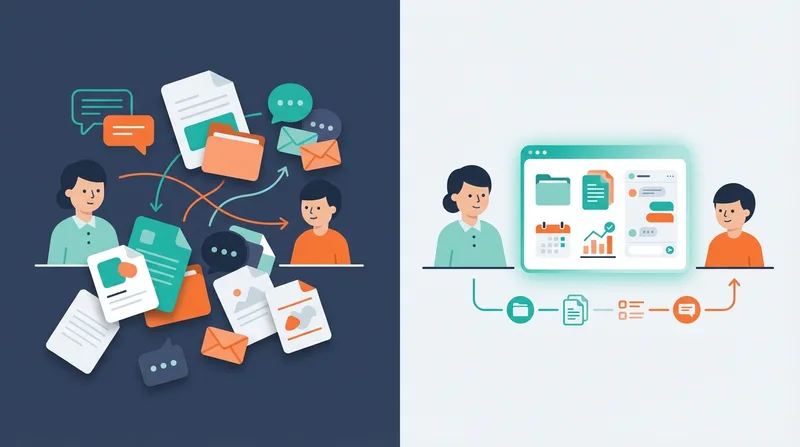
The Chaos: How Most Teachers Share Materials
If you’re an independent language teacher, you probably recognize this pattern:
- Vocabulary lists go on WhatsApp (quick to send, impossible to find later)
- Worksheets and PDFs go via email (slightly more organized, but students have 3 email addresses)
- Audio and video links go in a Google Drive folder (that students forget the URL for)
- Homework instructions are a voice message on WhatsApp (that gets buried under 50 new messages)
- Class notes exist in your head or a private document the student can’t access
Five different channels. No index. No structure. Every file requires the student to remember which channel you used, when you sent it, and what it was called.
The result:
- Students ask you to resend materials constantly
- Files disappear when WhatsApp chat is cleared
- Students can’t study between lessons because they can’t find what they need
- You look less professional than you are
Why Scattered Materials Hurt More Than You Think
Students Give Up Studying Between Sessions
If finding the homework assignment requires scrolling through 3 days of WhatsApp messages, most students won’t bother. They’ll show up to the next lesson without reviewing anything. Then you spend the first 15 minutes re-teaching what they’ve forgotten.
You Waste Time Resending Files
Every “can you send that again?” costs you 5-10 minutes: finding the file, checking which student asked, making sure it’s the right version, sending it. Multiply by 15 students and you’re losing hours every week.
You Can’t Reference Past Materials
“Remember the article we read about sustainable fashion? Let’s build on that vocabulary today.” If neither you nor the student can quickly find that article, the connection between lessons breaks. Each class becomes an island.
It Looks Unprofessional
Students who pay $30-60 per lesson expect some level of organization. Sending materials via WhatsApp alongside casual chat messages doesn’t signal “professional language teacher.” A dedicated, organized system does.
The One Link Principle
Whatever system you choose, it should follow this rule: every student gets one link where all their materials live.
Not “check WhatsApp for vocabulary and email for worksheets and this Google Drive folder for audio files.” One link. One place. Everything.
When a student asks “where’s that thing from last class?”, the answer is always the same: “Check your [portal/folder/page]. It’s all there.”
Four Systems Compared
1. Google Drive (Shared Folders)
Setup: Create a folder per student. Share it with their email. Upload materials after each class.
Structure example:
Maria - B1 English/
├── 2026-03-15 - Daily Routines/
│   ├── vocabulary-list.pdf
│   ├── grammar-exercise.pdf
│   └── homework-instructions.txt
├── 2026-03-22 - Food & Restaurants/
│   ├── restaurant-roleplay.pdf
│   ├── menu-vocabulary.pdf
│   └── listening-audio.mp3
└── Resources/
    ├── irregular-verbs-table.pdf
    └── useful-phrases.pdf
Pros:
- Free
- Most students already have Google accounts
- Good for PDF-heavy workflows
- Decent search functionality
Cons:
- No connection between materials and your schedule
- Students need to remember the folder URL (or find the shared folder in their Drive)
- Folder structure requires manual creation and maintenance
- Can’t embed text directly (everything must be a file)
- No rich text, video embeds, or interactive content
- Managing 20+ student folders becomes time-consuming
Best for: Teachers with fewer than 10 students who primarily share PDFs and documents.
2. Notion (Shared Databases)
Setup: Create a Notion workspace with a database per student or a filtered view. Share individual pages with students.
Pros:
- Rich text, embeds, toggles, tables
- Looks professional and modern
- Good search and organization
- Templates for repeating structures
Cons:
- Learning curve (for you and students)
- Free plan limits shared guests
- Students need a Notion account
- No connection to scheduling or payments
- Can become over-engineered quickly
Best for: Tech-comfortable teachers who already use Notion and have students willing to create accounts.
3. Email (Structured Summaries)
Setup: After each class, send a structured email with the lesson summary, attached files, and homework instructions.
Pros:
- Everyone has email
- Creates a searchable archive
- Students can star or label important emails
Cons:
- Gets buried in inbox quickly
- No way to organize by topic or date (except manual search)
- Can’t update past emails (if you fix a typo in a worksheet, you need to resend)
- Students with multiple email addresses may miss materials
- Attachments hit size limits
Best for: Teachers who teach fewer than 5 students and want the simplest possible workflow.
4. Dedicated Platform (Per-Class Pages)
Setup: Each scheduled class automatically gets its own page. You add notes, materials, and homework to that page. Students access through their portal.
Pros:
- Materials connected to specific classes (students think “last Tuesday’s class,” not “document #47”)
- One URL for the student (their portal)
- Rich text + file uploads + video embeds in one place
- No manual folder creation or file organization
- Students always know where to look
- Scales to any number of students
Cons:
- Requires a platform subscription
- Students need to create an account
This is what Teeachie does. Every scheduled class gets a page with a rich text editor, file upload, and video embedding. Students access everything through their portal. No Google Drive folders, no WhatsApp file hunting.
Best for: Teachers with 10+ students who want to stop managing files manually.
Organizing Materials by Class vs. by Topic
By Class (Recommended)
Organize materials by the date they were used. This matches how students think about their learning: “What did we do in last Tuesday’s class?”
Why this works:
- Students can retrace their learning chronologically
- Homework is attached to the class where it was assigned
- Context is preserved (vocabulary list next to the grammar point it supports)
By Topic (Alternative)
Organize materials by subject: “Travel vocabulary,” “Past tense exercises,” “Business email templates.”
Why this is harder:
- Materials often span multiple topics (a worksheet about travel might include past tense, vocabulary, AND reading)
- Requires you to categorize everything, which takes time
- Students have to know which topic category to search in
The hybrid approach: Organize primarily by class date, but create a separate “Resources” section for reference materials that span multiple topics (verb tables, phrase lists, pronunciation guides).
The File Type Problem
Different material types need different handling:
| Material Type | Best Format | Sharing Method |
|---|---|---|
| Vocabulary lists | Text on class page or PDF | Directly in class notes |
| Grammar exercises | PDF or interactive link | Uploaded to class page |
| Audio files | MP3 or streaming link | Embedded or uploaded |
| Video | YouTube/Vimeo link | Embedded with preview |
| Articles | Direct link or PDF | Link in class notes |
| Homework instructions | Text | Written on class page |
| Student recordings | MP3 or voice message | Uploaded by student |
Pro tip: Avoid sending raw audio files via WhatsApp. They get compressed, can’t be bookmarked, and disappear when chat is cleared. Upload them somewhere persistent.
The Migration Plan
If you’re currently scattered across multiple channels, here’s how to consolidate:
Week 1: Pick your system
Choose one of the four options above. Don’t overthink it. The best system is the one you’ll actually use.
Week 2: Start using it for new classes
Don’t try to migrate everything at once. From today forward, all new materials go into the new system. Old materials stay where they are.
Week 3: Tell students
Send a message: “I’ve set up a new system for sharing class materials. From now on, everything will be at [link]. You can find all notes, vocabulary, homework, and files there.”
Week 4: Redirect, don’t resend
When a student asks for something via WhatsApp, don’t send it there. Say: “I’ve put it on your class page at [link]. You’ll find everything there going forward.”
Month 2: Fully transitioned
By this point, students know where to look. You’ve stopped sending materials through old channels. The “can you resend that?” messages drop significantly.
Making Materials Accessible
Having materials in one place isn’t enough if students don’t access them. A few strategies:
1. Mention the class page during lessons. “I’m adding today’s vocabulary to your class page right now. Check it tonight for your homework.”
2. Keep it simple. Don’t over-organize. Students need to find things in 2 clicks or less. Complex folder hierarchies look organized to you but confusing to students.
3. Use consistent naming. If every class page has the same sections (Vocabulary, Grammar, Homework, Resources), students learn the pattern and find things faster.
4. Add context, not just files. Don’t just upload a PDF. Write a sentence about it: “This worksheet practices the conditional tense we covered today. Focus on questions 1-5.” Context helps students understand what to do with the material.
Related: How to organize class notes | Homework systems that increase retention | Track student progress | Business Starter Kit | Student Portal features
Try Teeachie free - class pages with rich text, file uploads, video embeds, and student portal.