Sign in, sign out, and reset your password
Learn how to access your Teeachie account, sign out securely, and reset your password if needed.
Sign in, sign out, and reset your password
This guide covers everything you need to know about accessing your Teeachie teacher account.
Sign in to your account
- Go to teeachie.com
- Click Sign In in the top right corner
- Enter your email address and password
- Click Sign In
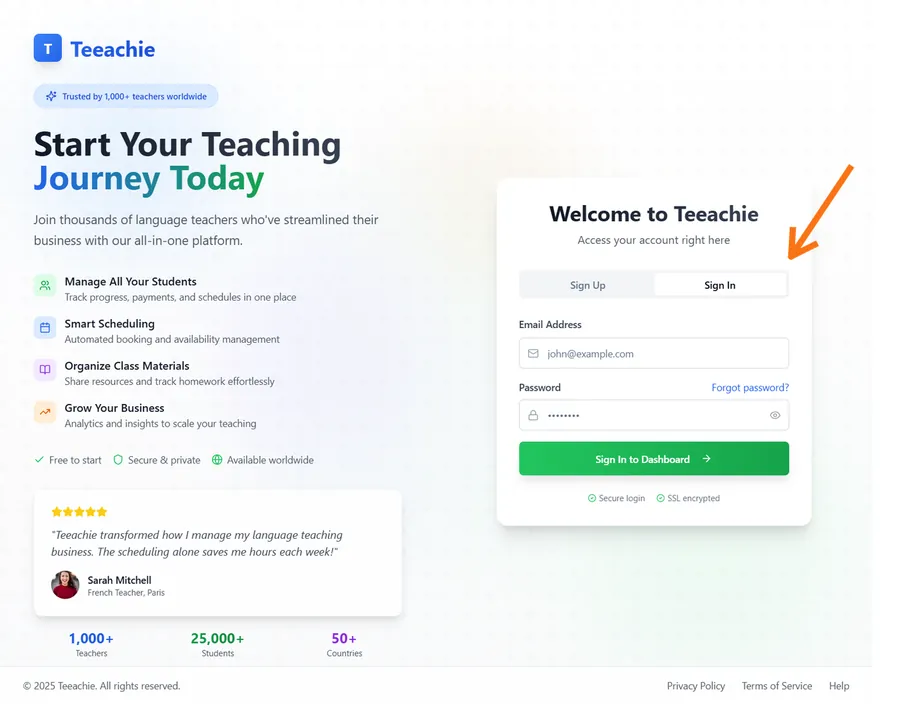
You’ll be taken directly to your teacher dashboard.
Tip: Your session may stay active for a while. You’ll need to sign in again after extended inactivity, signing out, or clearing browser data.
Sign out of your account
To sign out:
- Click your avatar in the top right corner of the dashboard
- Click Log out at the bottom of the menu
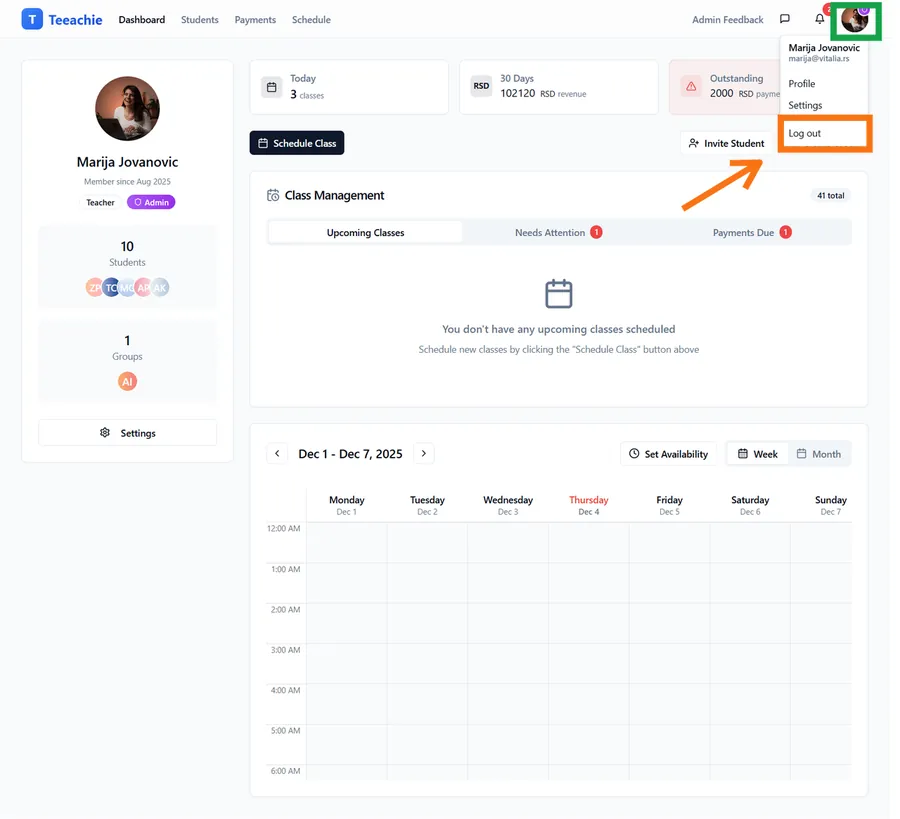
You’ll be returned to the Teeachie homepage.
Using a shared computer? Always sign out when you’re done to keep your account secure.
Reset your password {#reset-password}
If you’ve forgotten your password, you can reset it easily:
- Go to the sign in page
- Click Forgot password? below the password field
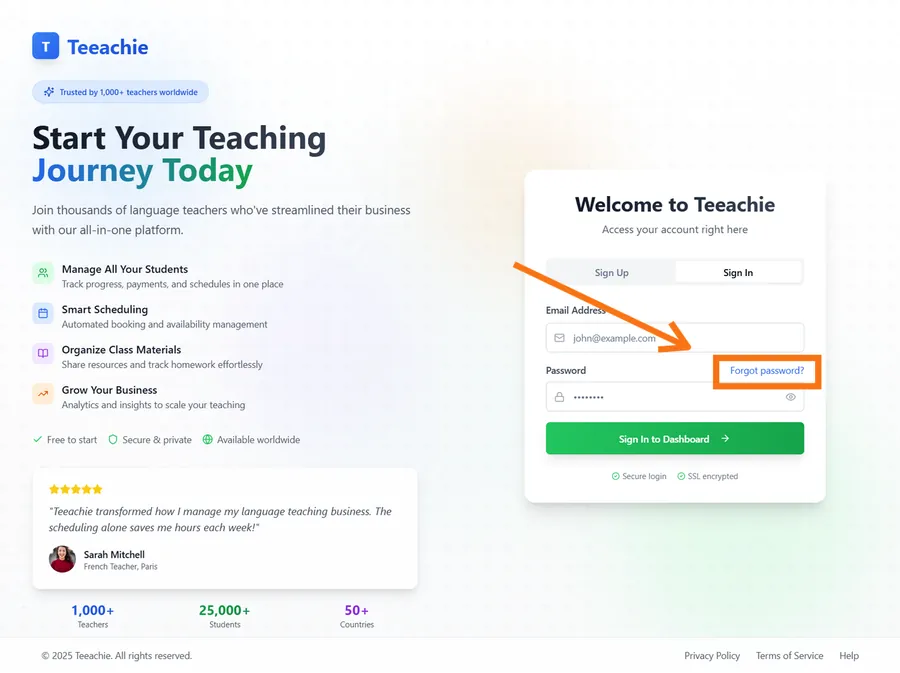
- Enter your email address
- Click Send Reset Instructions
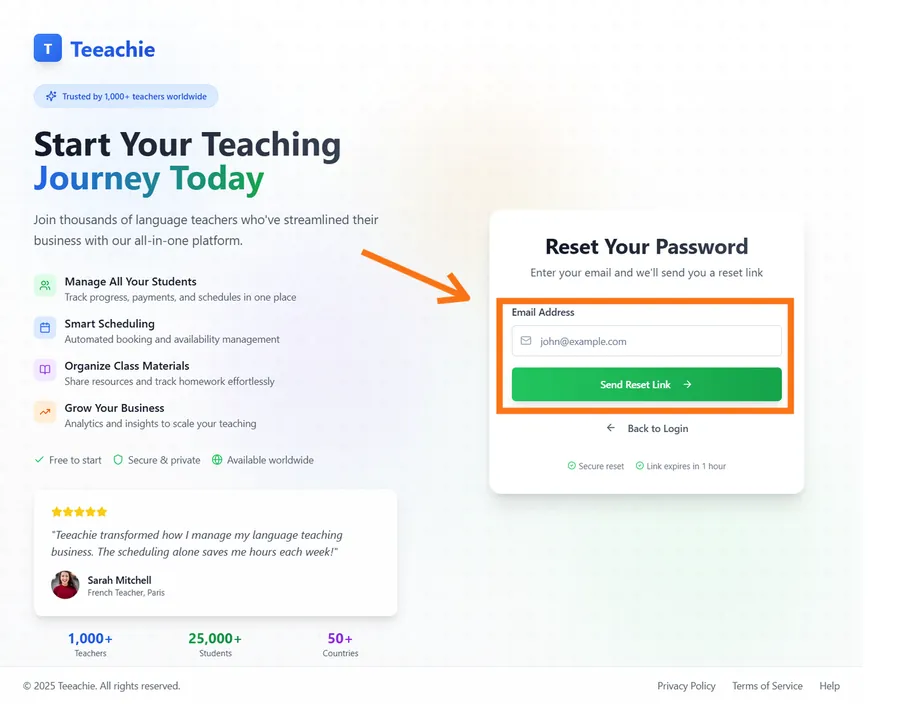
- Check your email for a password reset message
- Click the Reset Password link in the email
- Enter your new password (we recommend at least 8 characters with a mix of letters and numbers)
- Click Update Password
You can now sign in with your new password.
Change your password
To change your password from within your account:
- Sign in to your account
- Click your avatar → Settings
- Go to Password Settings
- Click Send Password Reset Email
- Follow the reset link sent to your email
- Enter your new password
Note: Password changes go through the email reset flow for security.
Troubleshooting
”Invalid email or password”
- Double-check your email address for typos
- Make sure Caps Lock is off
- Try resetting your password if you’re unsure
”Email not verified”
You need to verify your email before signing in:
- Check your inbox for the verification email
- Click the verification link
- If the link expired, go back to the verification page where we asked you to check your email and click Resend verification. If you can’t find that page, try signing up again with the same email to return to the verification screen.
Password reset email not arriving
- Wait a few minutes – emails can be delayed
- Check your spam/junk folder
- Make sure you’re using the correct email address
- Try requesting another reset link
”Too many attempts”
For security, Teeachie limits login attempts. Wait a little while before trying again, or reset your password.
Security tips
- Use a strong password – Mix letters, numbers, and symbols
- Don’t share your password – Teeachie staff will never ask for it
- Sign out on shared devices – Protect your account on public computers
- Update your password regularly – Change it every few months
Need help?
If you can’t access your account, contact our support team with your email address and we’ll help you get back in.