Record payments for individual students
Learn how to record payments and add class credits to individual students' accounts.
Record payments for individual students
When students pay for classes, you need to record the payment and add credits to their account. This guide walks you through the process.
Record a payment
- Go to the student’s profile
- In the Overview tab, find the Individual Classes card
- Click Record Payment next to the Balance amount
- Enter the Amount the student paid
- Click Record Payment to save
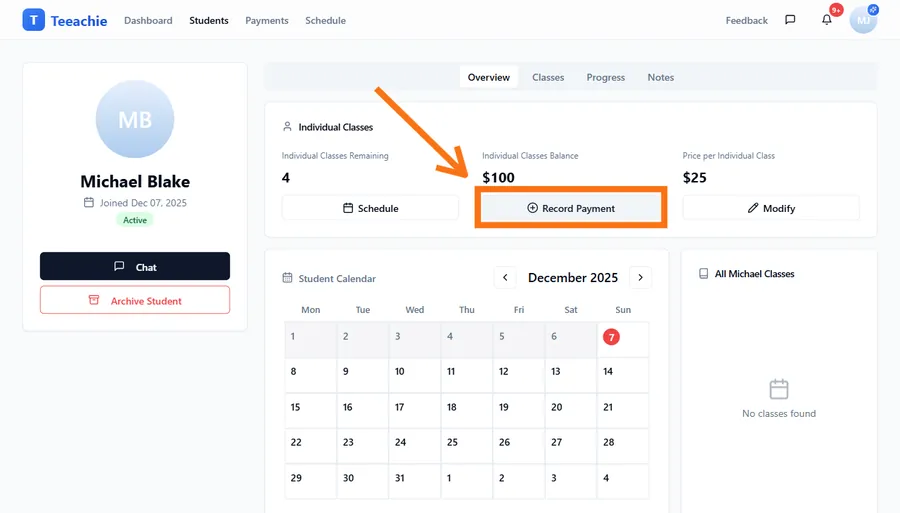
Payment updates balance
When you record a payment:
- The amount is immediately added to the student’s monetary balance
- Classes remaining is a display-only calculation (balance ÷ price per class, rounded down)
- Revenue is logged for your Payments Hub
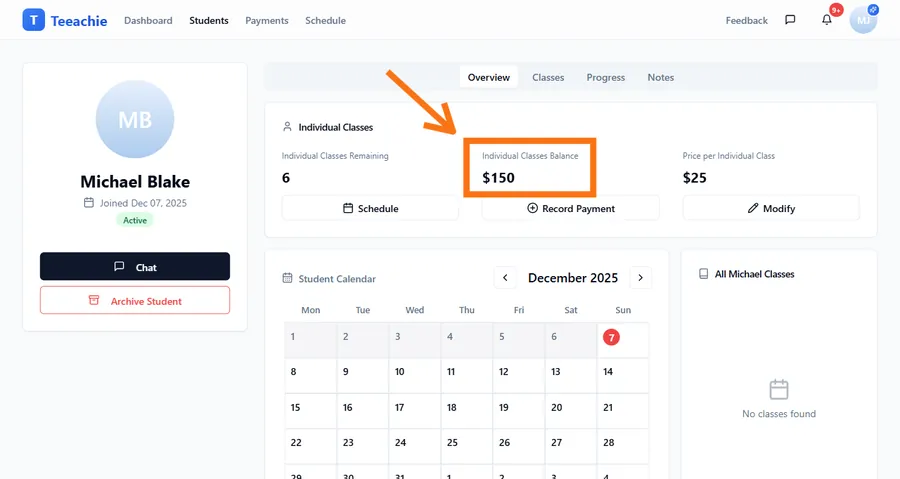
How balance and classes work
The student’s balance is the actual monetary value stored. The system then calculates classes remaining as a display value:
Classes Remaining = Balance ÷ Price per Class (rounded down)
For example:
- Student pays $200
- Price per class is $50
- Balance shows $200, Classes remaining shows 4
Tip: Set the price per class in the student’s profile using the Modify button next to “Price per Individual Class.” This affects the classes remaining calculation.
View payment history
To see all payments including those from a specific student:
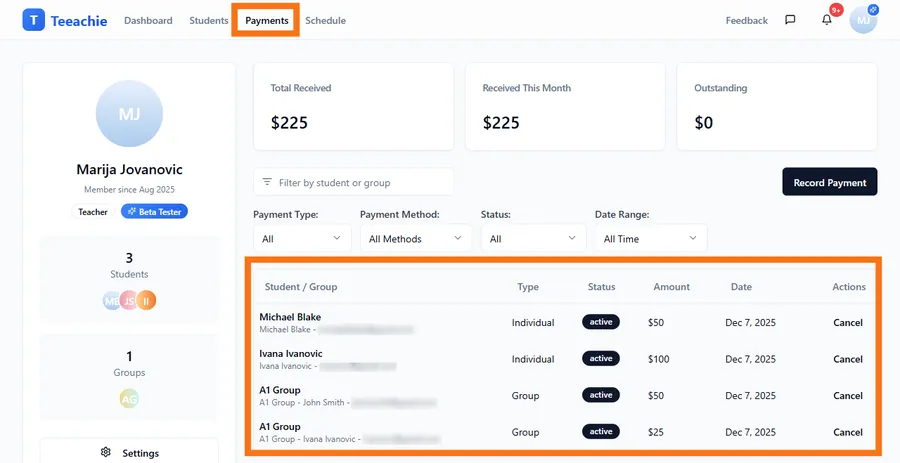
- Go to Payments in the top navigation
- Use filters to find payments by student name or date
Each payment shows:
- Date recorded
- Student name
- Amount and currency
- Type (individual or group)
Currency handling
Payments use your preferred currency (set in Settings). This currency displays on all payment records and is used for revenue calculations.
Best practices
Record promptly
Enter payments as soon as you receive them to keep records accurate.
Double-check amounts
Verify the amount matches what you actually received.
Set accurate prices
Keep the “Price per Individual Class” accurate so classes remaining calculates correctly.
From the Class Management Hub
You can also record payments from the Payments Due section:
- Go to Dashboard
- Find Class Management Hub
- Click Payments Due tab
- Find the student
- Click Record Payment
This is useful when reviewing who owes payments.
Troubleshooting
Balance didn’t update
- Refresh the student profile page
- Check the payment was saved successfully (you should see a success message)
- Verify you entered a valid amount
Wrong amount recorded
- Contact support to correct the payment record
What’s next?
- Use the Payments Hub – Track all revenue
- Payment models explained – Understand the system
- Record group payments – For group enrollments
Need help?
Issues recording payments? Contact support and we’ll assist you.