Use the Payments Hub to track revenue
Learn how to use the Payments Hub to view revenue, track outstanding balances, and manage payments.
Use the Payments Hub to track revenue
The Payments Hub gives you a complete view of your revenue and outstanding payments. This guide shows you how to use it effectively.
Access the Payments Hub
- Click Payments in the top navigation bar
- The Payments page opens with the Payments Hub
Overview metrics
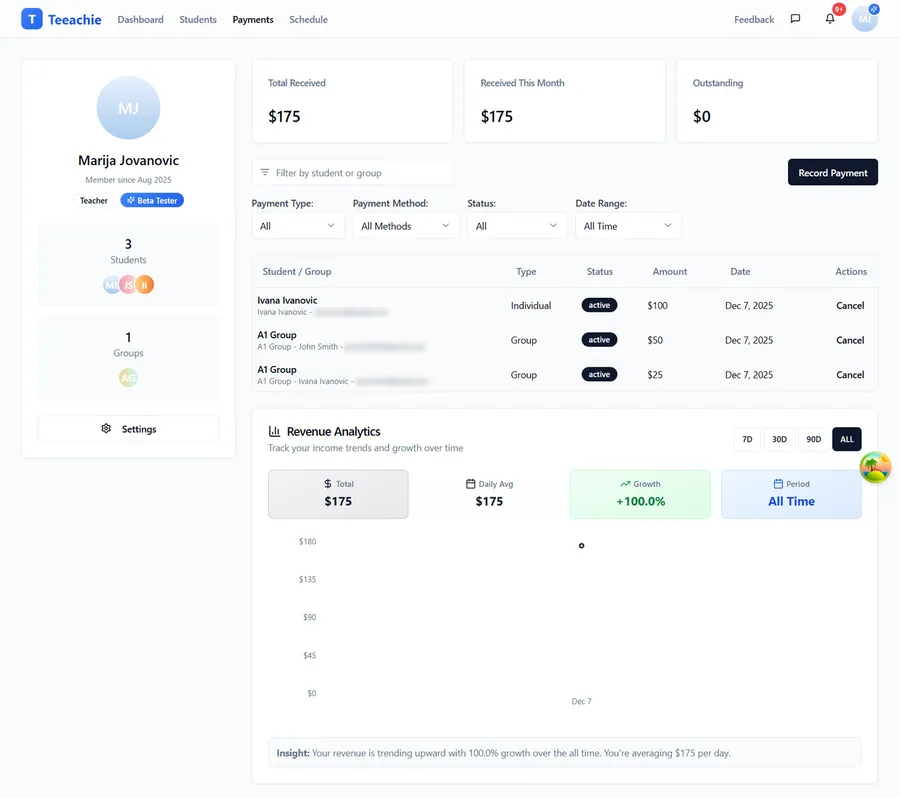
At the top of the hub, you’ll see three key metrics:
- Total Received – All payments received
- Received This Month – Revenue in the current month
- Outstanding – Amounts still owed
These give you a quick snapshot of your financial status.
Payment list
Below the metrics, you’ll see a table of all payments with columns:
- Student / Group – Who paid
- Type – Individual or group payment
- Status – Payment status (active, cancelled)
- Amount – Payment amount in the relevant currency
- Date – When the payment was recorded
Filter payments
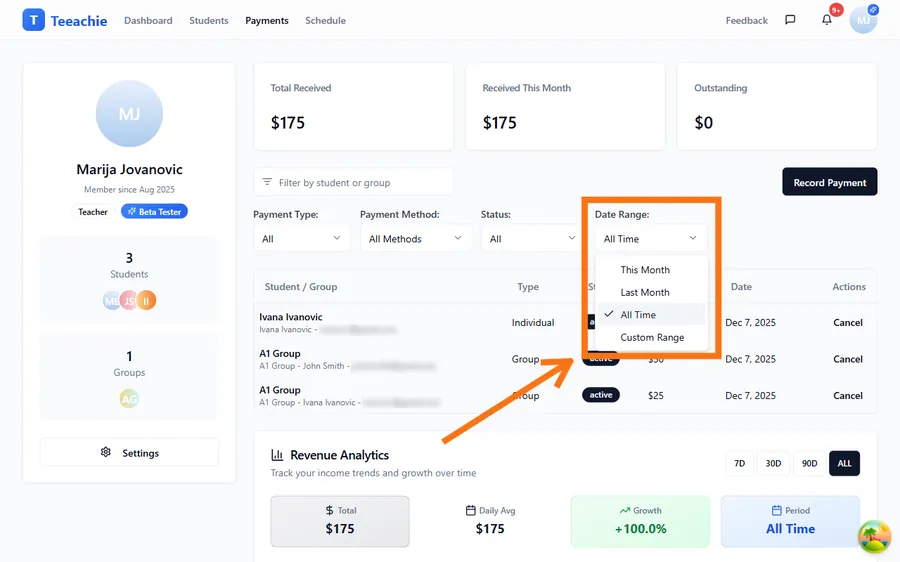
Use filters to find specific payments:
By date range
- Select start and end dates
- View payments within that period
- Great for monthly accounting
By type
- Individual payments
- Group payments
- All payments
By student/group
- Search for specific student
- Filter by group name
Revenue tracking
The Payments Hub helps you understand your income:
Revenue Analytics
The Revenue Analytics section shows:
- Time-range buttons: 7 days, 30 days, 90 days, or all time
- A daily revenue chart showing payment trends
- Insights: total revenue, daily average, and growth percentage
Currency handling
All amounts are shown in your preferred currency (set in your profile). Teeachie doesn’t currently support per-payment currency conversion – if you receive payments in another currency, convert them externally and record the converted amount.
Outstanding balances
Track students who owe payments:
What Outstanding includes
Outstanding combines:
- Students with negative individual credit balances
- Group enrollments where amount paid is less than the agreed package price
- Group enrollments where attended sessions exceed what’s been paid for
It summarizes open balances across your teaching practice, not just specific unpaid classes.
Class Management Hub integration
The Payments Due tab in Class Management Hub shows overdue payment items and provides Record Payment buttons that open the individual or group payment dialogs.
Negative balance
For individual students:
- Negative balance = classes recorded but balance is less than the class price
- Shown clearly on student profile
- Flagged in the Payments Due section
Best practices
Review weekly
Check the hub at least weekly to:
- Catch missed payments
- Follow up on outstanding balances
- Understand revenue trends
Use filters strategically
Filter by month for accounting, by student for relationship management.
Record payments promptly
The hub is only accurate if payments are recorded when received.
Address outstanding balances
Don’t let unpaid balances grow – follow up promptly.
Understanding the numbers
Total Received includes:
- All recorded payments (individual + group)
- Does not include pending or expected
Outstanding includes:
- Students with negative individual credit balances
- Group enrollments with amounts owed (based on agreed prices vs amount paid)
Received This Month shows:
- Payments recorded in current calendar month
- Regardless of when payment was actually received
Troubleshooting
Numbers seem wrong
- Check all payments are recorded
- Verify correct amounts were entered
- Look for duplicate or cancelled payments
Missing payment
- Search by student name
- Check the date range filter
- Verify it was saved successfully
Currency questions
- All payments display in your preferred currency
- If amounts look wrong, verify you recorded the correct converted amount
- Check your currency setting in profile settings
What’s next?
- Record individual payments – Add new payments
- Record group payments – Process group enrollments
- Payment models explained – Understand the system
Need help?
Questions about the Payments Hub? Contact support and we’ll help you navigate.