Track and manage pending student invitations
View invitation status, resend invitations, and manage pending students who haven't yet accepted.
Track and manage pending student invitations
When you invite a student, they need to accept the invitation and create their account. This guide shows you how to track invitation status and manage pending students.
View pending invitations
- Click Students in the top navigation
- Scroll to the Pending Invitations section at the bottom of the page
- Click to expand and see all pending invitations
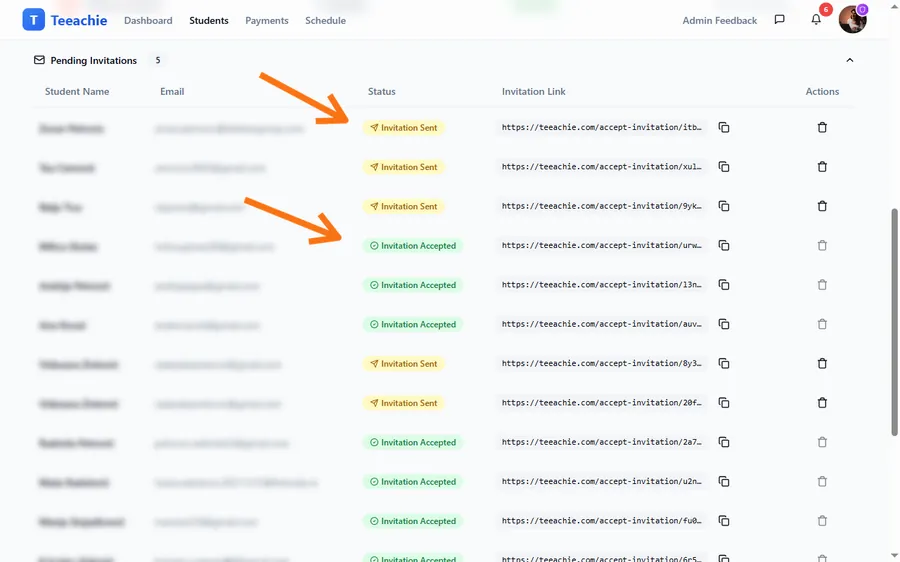
The section shows a badge with the count of pending invitations.
Invitation information
Each pending invitation shows:
- Student name and email – The invited student’s details
- Invitation link – Copy and share with the student
- Actions – Copy link or delete the invitation
Student status filter
To filter your accepted students list:
- On the Students page, find the Student Status filter buttons
- Click All, Active, or Archived to filter by status
- Use the Enrollment Type filter buttons (All, Individual, Group) to further narrow results
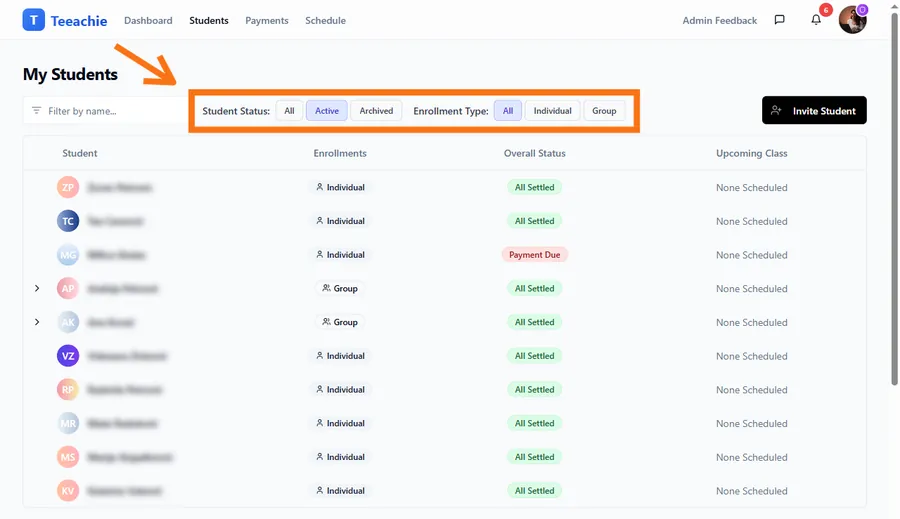
Note: Pending invitations are shown in their own section, not in the main student list.
Copy invitation link
Since Teeachie doesn’t send emails automatically, you’ll share the invitation link yourself:
- Find the invitation in the Pending Invitations section
- Click the copy link icon
- Send the link to your student via email, message, or other means
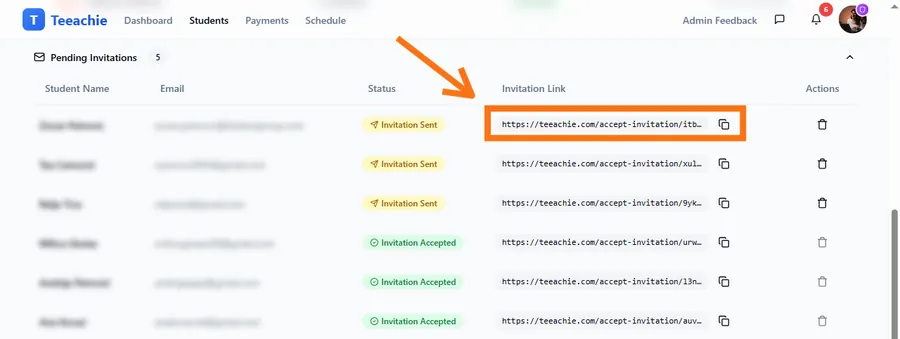
Tip: Send the link via a method you know your student will see – email, WhatsApp, text message, etc.
Delete a pending invitation
If you added a student by mistake or want to cancel an invitation:
- Find the invitation in the Pending Invitations section
- Click the delete icon (trash)
- Confirm the deletion
Note: You can only delete invitations that are still pending. Once a student accepts and creates their account, they become a full student and can be archived instead. You can always send a new invitation later if needed.
Schedule classes for pending students
You can schedule classes for students even before they accept their invitation:
- Go to Availability in the top navigation
- Create a new class
- Select the pending student from the dropdown
The class will appear on their calendar once they create their account.
This is useful when:
- You’ve already agreed on a class time
- You want everything ready when they sign up
- You’re transitioning from another scheduling system
Invitation validity
Invitations do not expire - students can accept them at any time. This means:
- No rush for students to sign up
- Links remain valid indefinitely
- You can delete and re-invite if needed
Troubleshooting
Student says link doesn’t work
- Delete the current invitation
- Add the student again with a new invitation
Wrong email address
- Delete the pending invitation
- Add the student again with the correct email address
Student has multiple teachers
A student can have accounts with multiple teachers. If they already have a Teeachie account with another teacher, they can still accept your invitation – it will link to their existing account.
What’s next?
- What students see – Understand the acceptance process
- Edit student details – Update information after they join
- Troubleshooting invitations – Common issues and solutions
Need help?
Having trouble with invitations? Contact support and we’ll help you resolve it.