Add a new student and send an invitation
Learn how to add students to your Teeachie account and send them invitations to join.
Add a new student and send an invitation
Adding students to Teeachie is quick and easy. This guide walks you through inviting a new student and configuring their initial settings.
Add a new student
- Click Students in the top navigation
- Click the Add Student button
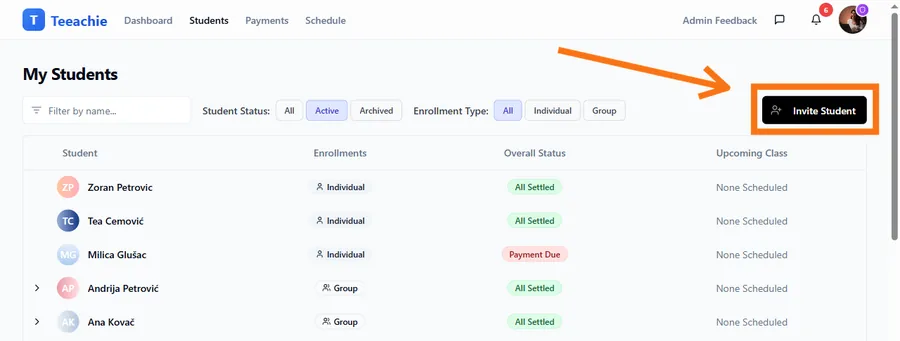
- Fill in the student’s information:
Required fields
- First Name – Your student’s first name
- Last Name – Your student’s last name
- Email Address – Where the invitation will be sent
Optional fields
- Price per Class – Your rate per session
- Initial Payment – Pre-paid amount they have with you (converts to credits)
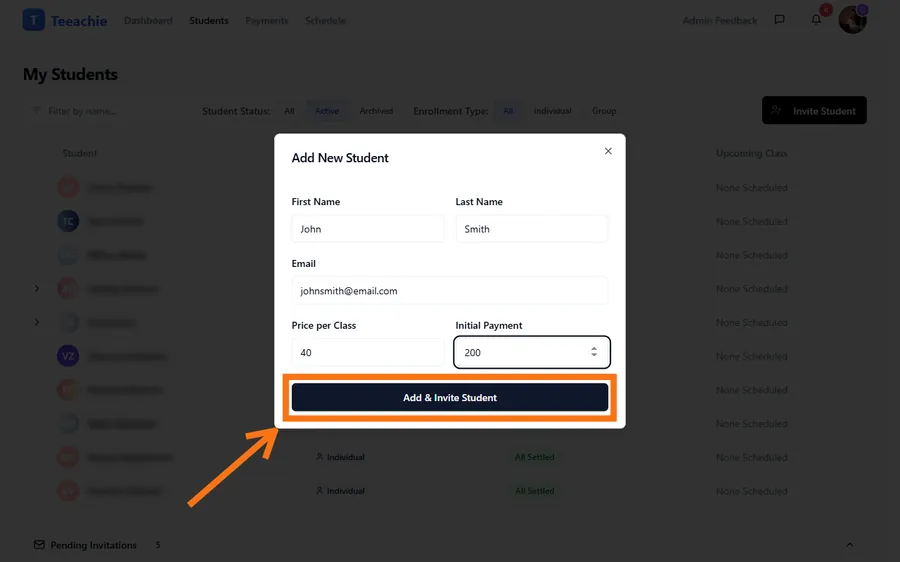
- Click Add & Invite Student
What happens next
After you click Add & Invite Student:
- Teeachie generates a unique invitation link – Copy it from the Pending Invitations section and send it to your student via email or message
- They appear in the Pending Invitations section at the bottom of your Students page
- You can schedule classes for them immediately – even before they accept
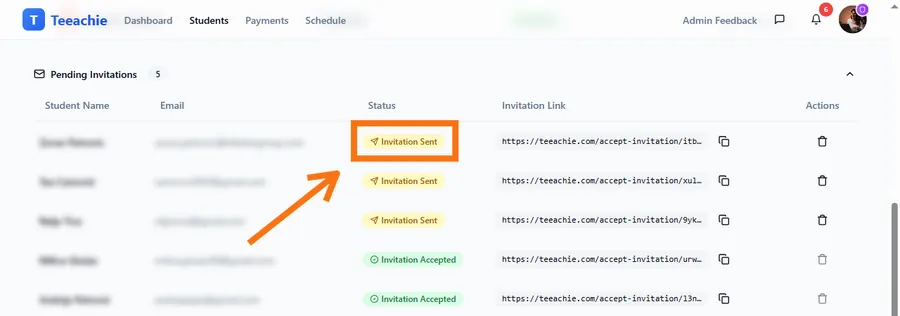
Tip: You don’t have to wait for students to accept their invitation before scheduling classes. Classes will appear on their calendar once they create their account.
Understanding student settings
Price per class
The price per class sets your default rate for this student. This is used when:
- Recording payments
- Tracking revenue
- Calculating outstanding balances
You can change the price later from the student’s profile if your rates change.
Initial payment
If a student has already paid you for classes before joining Teeachie, enter the amount here. This becomes the student’s account balance. Teeachie then shows “classes remaining” by dividing that balance by your price per class (rounded down).
Examples:
- Student pre-paid $200 at $40/class → Balance shows $200, “5 classes remaining”
- New student, no pre-payment → Leave at “0”
Add multiple students
To add several students at once, simply repeat the process. Each student gets their own unique invitation link.
Troubleshooting
”Email already exists”
This email is already associated with a Teeachie account. Either:
- The student already has an account (check your Students list)
- Another teacher has already invited them (students can have multiple teachers)
Student says they didn’t get the link
- Make sure you sent the invitation link to the correct address
- Copy the link again from Pending Invitations and resend it
- See Manage invitations for more details
Wrong information entered
No problem! You can edit student details anytime from their profile page.
What’s next?
After adding a student:
- Track pending invitations – Monitor invitation status
- What students see – Understand their experience
- Schedule a class – Book your first session
Need help?
Having trouble adding a student? Contact support and we’ll assist you.