Reply in group message threads
Learn how group conversations work and how to participate in group discussions.
Reply in group message threads
When you’re part of a group class, you may have access to group conversations. Here’s how they work.
Access group messages
From the messaging drawer
- Click the message icon in the header
- The messaging drawer opens
- Look for group conversations – they’re labeled with a Group badge
- Select the group to view and reply to messages
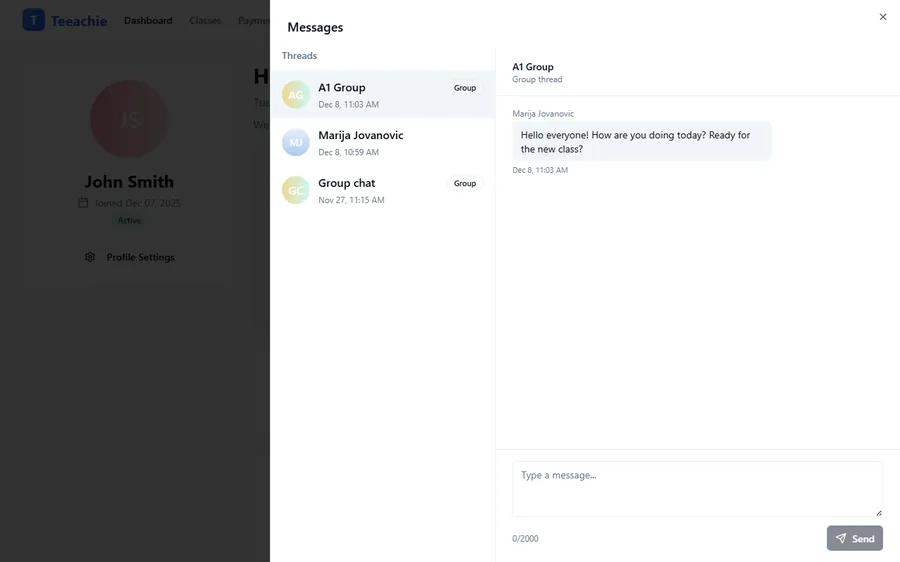
Who can see group messages?
In a group conversation:
- Your teacher can see all messages
- All group members can see messages
- Messages are shared with the entire group
Important: Anything you write in a group chat is visible to all participants.
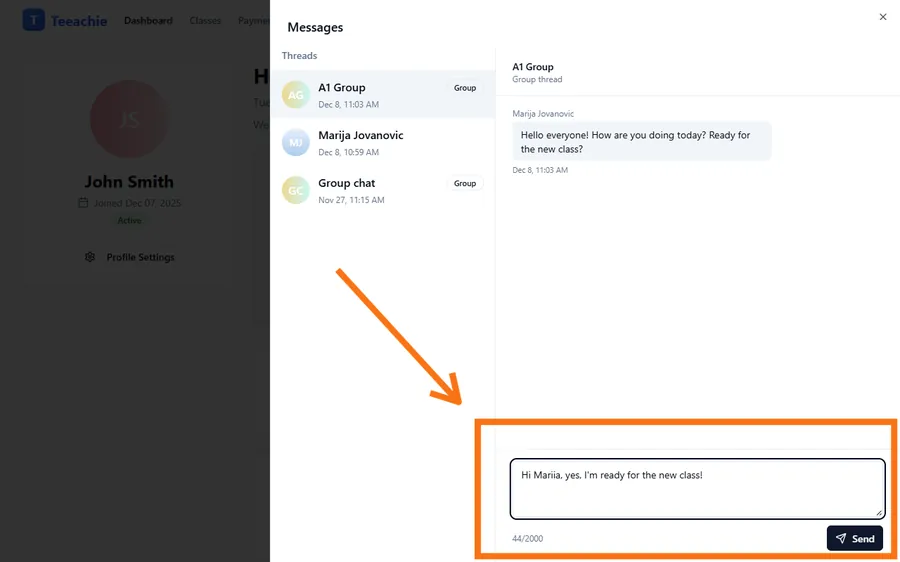
Reply to a group message
- Open the group conversation
- Type your message in the text box
- Click Send
- Your message appears in the thread
Everyone in the group will see your reply.
Group message etiquette
Keep it relevant
- Stay on topic for the group
- Avoid off-topic personal conversations
- Use direct messages for private matters
Be friendly
- Remember everyone can read your messages
- Be encouraging to classmates
- Avoid criticism or negativity
Don’t overshare
- Keep messages appropriate
- Avoid sharing personal contact information
- Respect everyone’s privacy
Private vs group messages
Group messages
- Everyone in the group sees them
- Good for: class questions, group scheduling, shared resources
Direct messages to teacher
- Only you and your teacher
- Good for: personal questions, payment matters, private feedback
When to use group vs direct
| Use Group For | Use Direct For |
|---|---|
| Questions about group class content | Personal scheduling requests |
| Sharing resources with classmates | Payment questions |
| Group scheduling discussions | Private feedback |
| General class discussions | Personal learning concerns |
Can’t see group messages?
If you don’t see group messaging:
- You may need to be enrolled in the group first
- Your teacher may not have enabled group messaging
- Check that you’re viewing the correct group
Notifications for group messages
When someone posts in a group:
- The message icon shows an unread badge
- Open the messaging drawer to see new messages
- Group threads are marked when there are unread messages
Leave a group conversation?
Group membership is managed by your teacher:
- You can’t leave a group chat yourself
- If you leave the group, you lose message access
- Contact your teacher about group changes
What’s next?
- Send direct messages – Private teacher chat
- Understand notifications – Stay updated
- View your groups – Group overview
Need help?
Issues with group messages? Contact support or ask your teacher.
Updated December 2, 2025