In-app notifications for students
Learn about the notifications you receive and how to stay informed about your classes.
In-app notifications for students
Teeachie keeps you informed about your classes, materials, and messages. Here’s how notifications work.
Types of notifications
Class notifications
- Class scheduled – Your teacher booked a new class
- Class rescheduled – Time or date changed
- Class cancelled – A class was cancelled
- Meeting link added – A class meeting link was added
Materials notifications
- Material added – Teacher shared files for a class
- Homework submitted – Confirmation of your submission
Payment notifications
- Payment recorded – Teacher logged a payment
- Balance low – Your class balance is running low
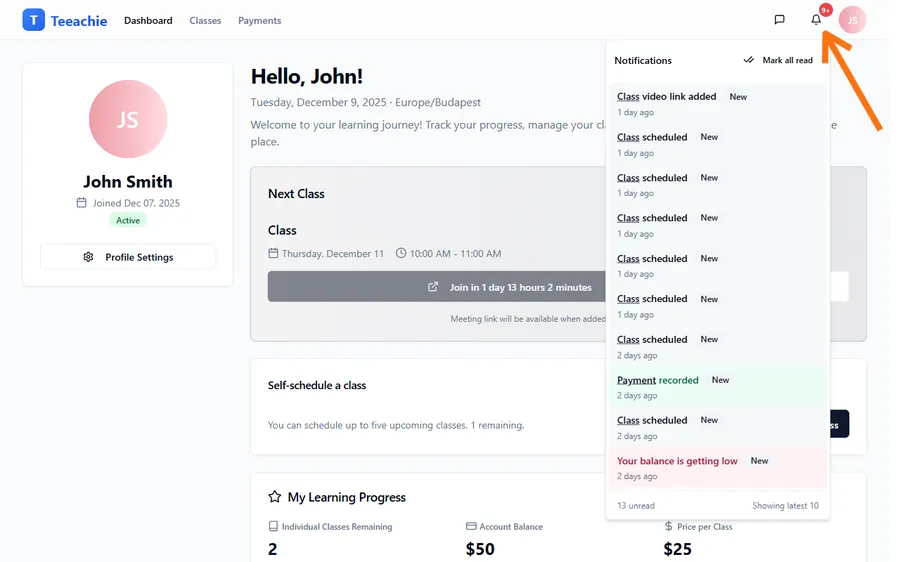
View your notifications
Notification bell
- Look for the bell icon in the header
- A badge shows unread count
- Click to see recent notifications
Notification list
- Most recent notifications appear first
- Click a notification to view details
- Notifications are marked as read when viewed
Real-time updates
Teeachie updates in real-time:
- No need to refresh the page
- Notifications appear as events happen
- Bell icon updates automatically
Notification examples
Class scheduled
“Class scheduled” – Click to view the class details
Material added
“Material added” – Click to access new class materials
Class cancelled
“Class cancelled” – Click to see the affected class
Balance low
“Balance low” – Reminder to arrange payment with your teacher
Notification settings
You can control which notifications you receive in your account settings.
Access notification settings
- Click your profile avatar in the header
- Select Settings
- Go to the Notifications tab
Notification categories
You can toggle notifications on or off for each category:
| Category | What it includes |
|---|---|
| Class updates | Scheduling, rescheduling, cancellations, meeting links |
| Payment updates | Payments recorded, balance low alerts |
| Homework & materials | Homework submissions, new materials |
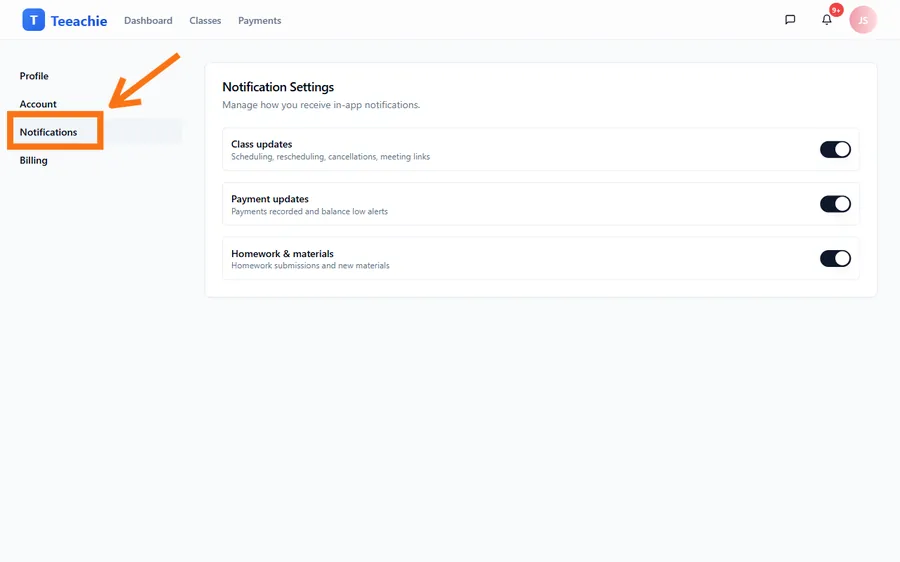
How toggles work
- On (default) – You receive notifications for that category
- Off – Notifications are silenced for that category
Changes save automatically when you toggle a switch.
Stay informed
Check regularly
- Look at your notifications daily
- Don’t miss important class changes
- Review before each class
Dashboard updates
Your dashboard surfaces upcoming classes and updated information. The notification bell shows additional alerts separately.
Managing notifications
Mark as read
Click notifications to mark them as read and clear the badge count.
Clear old notifications
Your notification list is kept manageable. Focus on recent notifications for the most relevant updates.
Missing notifications?
If you’re not seeing notifications:
Check your connection
- Ensure you have stable internet
- Notifications need real-time connection
Refresh the page
Sometimes a page refresh helps load new notifications.
Clear browser cache
Old cached data can sometimes cause issues.
Notification timing
Notifications appear:
- Immediately when events occur (real-time)
- On page load if you were offline
There are no email notifications – all notifications are in-app only.
What triggers notifications?
| Event | You’re Notified |
|---|---|
| Teacher schedules class | Yes |
| Teacher reschedules class | Yes |
| Teacher cancels class | Yes |
| Teacher adds meeting link | Yes |
| Teacher uploads materials | Yes |
| You submit homework | Yes (confirmation) |
| Payment recorded | Yes |
| Balance is low | Yes |
What’s next?
- Send messages – Communicate with teacher
- View your classes – Check schedule
- Dashboard overview – See everything
Need help?
Not receiving notifications? Contact support.