Send messages to your teacher
Learn how to communicate with your teacher through Teeachie's messaging system.
Send messages to your teacher
Need to ask a question or share something with your teacher? Teeachie has a built-in messaging system.
Start a conversation
From the messaging drawer
- Click the message icon in the header
- The messaging drawer opens
- Select your teacher’s conversation from the Threads list
- Type your message in the text box
- Click Send
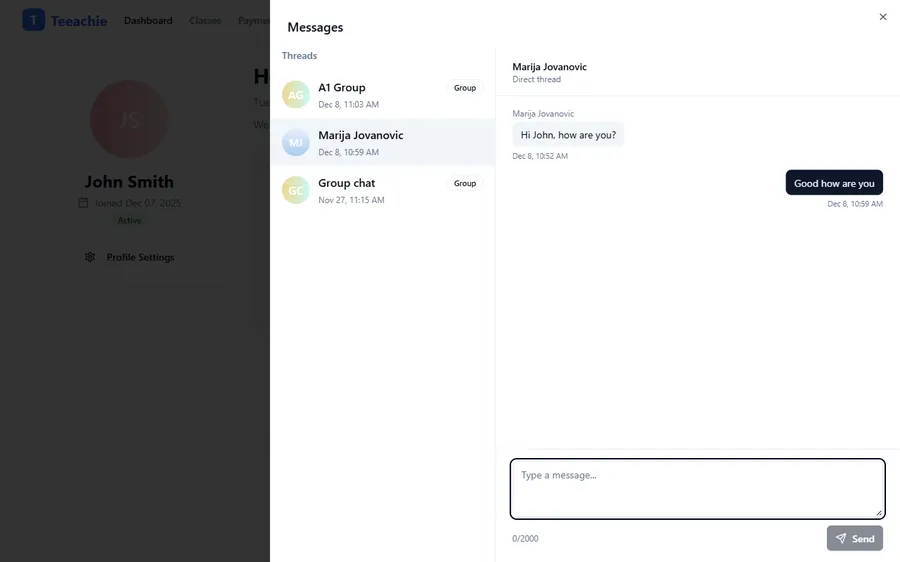
A conversation appears in your Threads list once your teacher starts messaging you or opens your profile. Simply select it from the list to start messaging.
Compose a message
- Type in the message box
- Keep messages clear and concise
- Press Enter to send, or click the Send button
Tip: Use Shift+Enter to add a new line without sending.
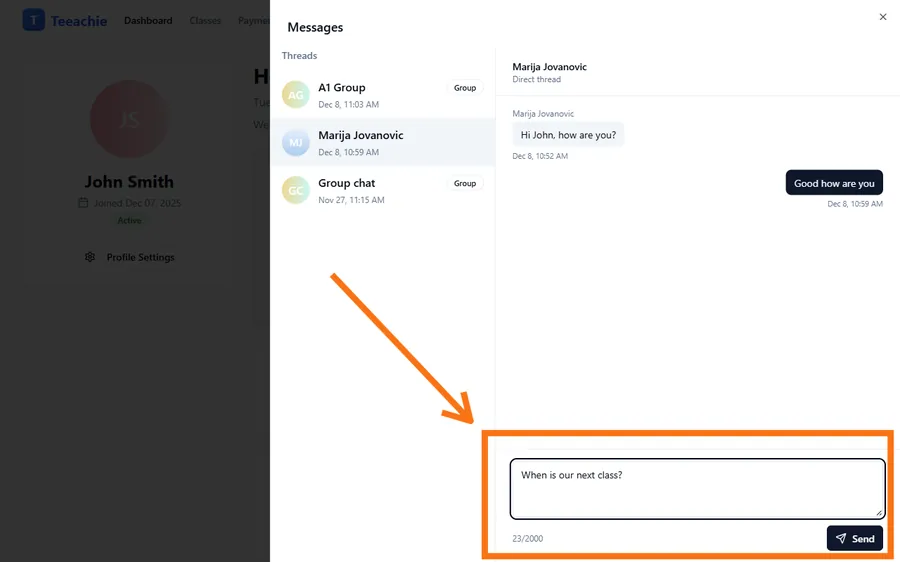
View conversation history
All messages are saved in your conversation:
- Scroll up to see older messages
- Messages show date and time
- Your messages appear on the right
- Teacher’s messages appear on the left
Common reasons to message
About classes
- “I’ll be 5 minutes late tomorrow”
- “Can we reschedule this week’s class?”
- “I didn’t understand today’s homework”
About materials
- “Could you share the slides from last class?”
- “I can’t download the homework file”
About scheduling
- “Can we add another class this week?”
- “I need to take a break next month”
About learning
- “I’d like to focus more on speaking”
- “Can you recommend extra practice?”
Message etiquette
Be clear
State your question or request clearly so your teacher can help quickly.
Be timely
Don’t wait until the last minute for urgent requests.
Be patient
Teachers may not respond immediately – give them time to reply.
Be respectful
Keep conversations professional and friendly.
Response times
Your teacher sets their own availability:
- Some respond within hours
- Others may take a day or two
- Urgent matters may need different communication
Tip: For same-day class issues, try to message well in advance.
Message notifications
When your teacher replies:
- You’ll see a notification in Teeachie
- The message icon shows an unread badge
- Check the messaging drawer regularly
Can’t find the message option?
If you don’t see messaging:
- Make sure you’re logged in
- Check if your invitation has been accepted
- Refresh the page
Privacy
Your messages are private:
- Only you and your teacher can see them
- Other students cannot read your conversations
- Messages are stored securely
What’s next?
- Group messages – Chat with classmates
- Notifications – Stay informed
- Join a class – Find meeting links
Need help?
Problems with messaging? Contact support.