Join a class and find the meeting link
Learn where to find your meeting link and how to join your video class.
Join a class and find the meeting link
When it’s time for class, you need to find the meeting link to join the video call. Here’s how.
Find your meeting link
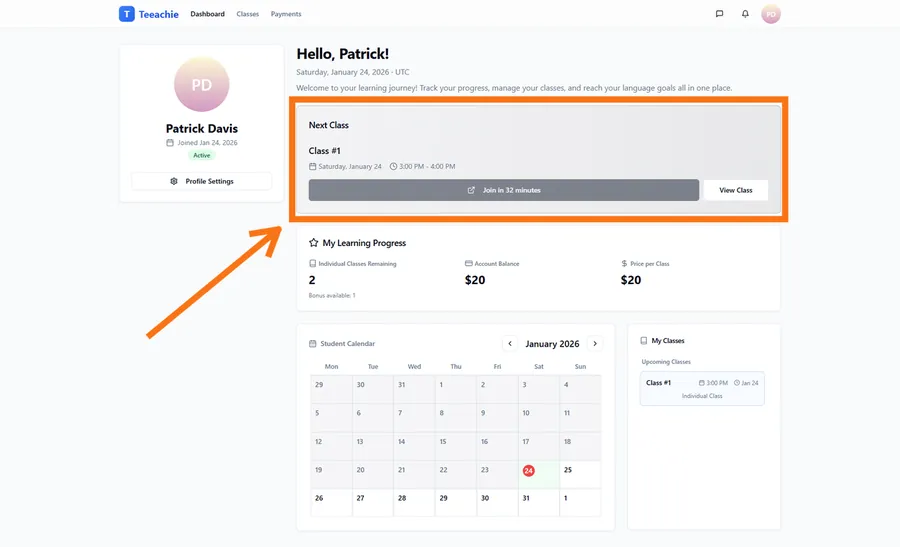
On your dashboard
The easiest way:
- Go to your Dashboard
- Find the Next Class card
- Click the meeting link or Join button
On the class page
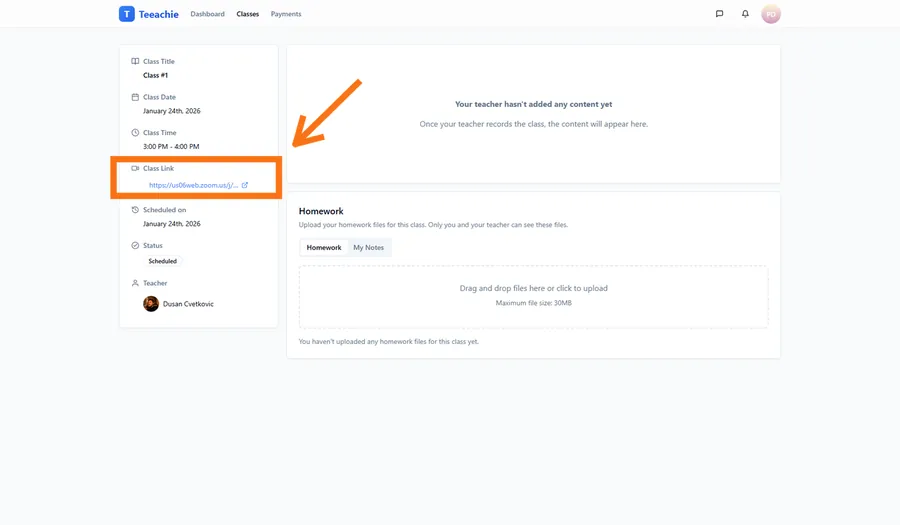
For more details:
- Click on the class in your calendar
- Open the Class Page
- Find the Meeting Link section
- Click to join
In the calendar
Quick access:
- Open your calendar
- Click on the upcoming class
- The meeting link appears in the popup
- Click to join
Joining the video call
When you click the meeting link:
- A new browser tab opens
- You’re taken to the video platform (Zoom, Google Meet, etc.)
- Follow that platform’s instructions to join
- Your teacher will be there waiting!
Before joining
Check your setup
- Camera – Working and positioned well
- Microphone – Working and not muted
- Headphones – Connected if you use them
- Internet – Stable connection
- Quiet space – Minimize background noise
Join a few minutes early
Aim to join 2-3 minutes before class time:
- Test your audio and video
- Handle any technical issues
- Be ready when class starts
Meeting link not showing?
If you can’t find the meeting link:
It might not be added yet
Your teacher needs to add the link. It may appear:
- Closer to class time
- A few hours before
- Ask your teacher if it’s missing
Check the class page
The link lives on the class page – make sure you’re looking at the right class.
Time zone issue
Check if the class time is correct for your timezone. The class might be at a different time than expected.
Supported video platforms
Your teacher can use any video platform:
- Zoom – Most common
- Google Meet – Works in browser
- Microsoft Teams – For some teachers
- Skype – Classic option
- Others – Any link-based platform
You don’t need to have the same platform as your teacher – just click the link and follow the prompts.
Troubleshooting
Link doesn’t work
- Try copying and pasting the full URL
- Refresh the page and try again
- Contact your teacher
Video platform issues
- Close other programs using your camera
- Try a different browser
- Restart your computer if needed
Can’t find the class
- Check your calendar date and time
- Verify your timezone is correct
- Look in both individual and group classes
After class
The meeting link remains on the class page for:
- Reference (if it’s a recurring link)
- Recording access (if your teacher provides one)
What’s next?
- Self-schedule a class – Book your own
- Access materials – Download files
- View past classes – Review history
Need help?
Problems joining? Contact support or message your teacher directly.