Troubleshooting invitations and first login
Solutions for common problems with invitation links and logging in for the first time.
Troubleshooting invitations and first login
Having trouble with your invitation or first login? Here are solutions to common problems.
Invitation link issues
”Invalid invitation” error
What it means: The invitation link is not recognized.
Solutions:
- Check the full link was copied (sometimes links get cut off)
- Ask your teacher to resend the invitation
- Make sure there are no extra spaces in the URL
”Invitation already used” error
What it means: Someone already created an account with this invitation.
Possible causes:
- You already accepted and forgot
- The link was accidentally used by someone else
Solutions:
- Try logging in with the email on the invitation
- Use “Forgot password” if you don’t remember your password
- Contact your teacher if you never accepted
Invitation link doesn’t load
What to try:
- Refresh the page
- Try a different browser
- Clear your browser cache
- Check your internet connection
- Try on a different device
Account creation issues
Email already in use
What it means: An account exists with that email address.
Solutions:
- Try logging in instead of creating new account
- Use “Forgot password” to reset access
- If you’re a new student, contact your teacher to use a different email
Password requirements not met
Passwords must have:
- At least 6 characters
- Longer passwords recommended for better security
Solution: Choose a password that meets the minimum length requirement.
Verification email not expected
When you accept an invitation from your teacher, you’re logged in automatically – no verification email is needed.
If you’re expecting a verification email and haven’t received one:
- Try logging in directly with your email and password
- Most student accounts created through teacher invitations don’t require email verification
First login problems
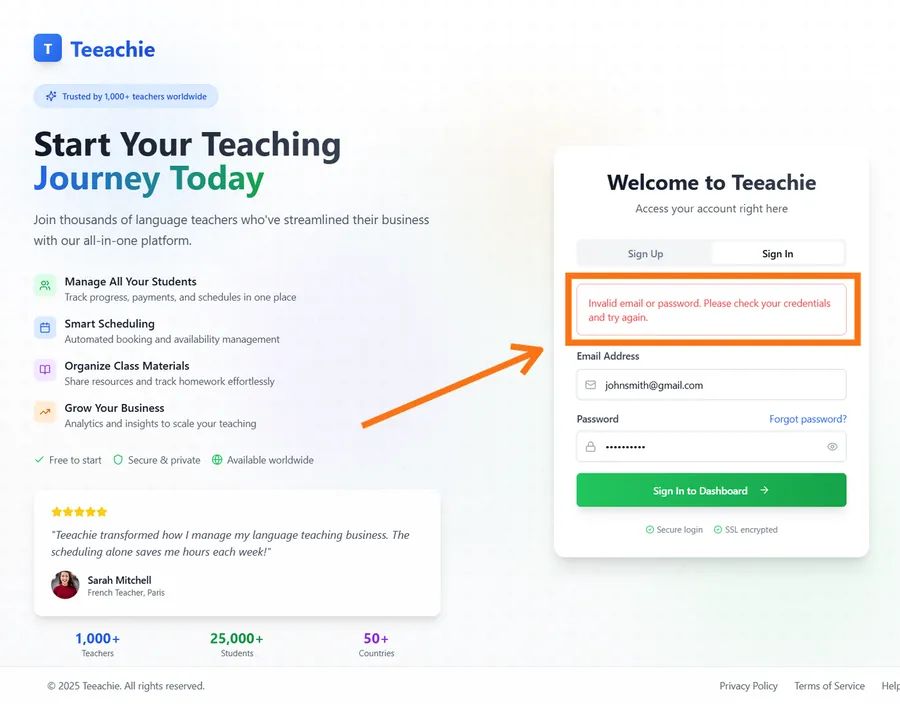
”Wrong password” error
Solutions:
- Double-check you’re using the password you created
- Make sure Caps Lock isn’t on
- Use “Forgot password” to reset
”Account not found” error
Possible causes:
- Email address typed incorrectly
- Account was never created
- Account was deleted
Solutions:
- Check spelling of your email
- Try the invitation link again
- Contact your teacher
Logged in but see wrong role
If you see a teacher dashboard instead of student:
Cause: You may have created a teacher account instead.
Solutions:
- Log out and use the invitation link to create correct account
- Contact support if you need account type changed
Page stuck loading
What to try:
- Refresh the page
- Clear browser cache
- Try incognito/private mode
- Use a different browser
Browser issues
Recommended browsers
- Google Chrome (latest)
- Firefox (latest)
- Safari (latest)
- Microsoft Edge (latest)
Clear your cache
- Go to browser settings
- Find “Clear browsing data” or similar
- Clear cached images and files
- Try again
Try incognito mode
Open a private/incognito window to test without cached data.
After logging in
Can’t see your teacher
If you don’t see any classes or teacher connection:
- Your invitation may not have completed
- There may be a syncing delay
- Contact your teacher to verify
Dashboard looks empty
This is normal right after creating your account:
- Your teacher needs to schedule classes
- Classes will appear once scheduled
- Materials will appear when uploaded
Getting help
From your teacher
Your teacher can:
- Resend invitations
- Check invitation status
- Verify your account
From Teeachie support
For technical issues:
- Contact support
- Include: your email, teacher’s name, error message
Prevention tips
Save your password
Use a password manager to avoid forgotten passwords.
Bookmark Teeachie
Save the login page for easy access.
Save teacher’s contact
Keep your teacher’s email in case you need to reach them outside Teeachie.
What’s next?
- Sign in guide – Normal login steps
- Contact support – Get help
- Accept invitation – Setup guide
Need help?
Still having issues? Contact support with details about your problem.