Set your availability and working hours
Configure your weekly teaching schedule, set working hours, and manage time slots when you're available for classes.
Set your availability and working hours
Your availability tells Teeachie when you’re free to teach. This helps prevent double-booking and lets students know when they can schedule classes with you (if you enable self-scheduling).
Access availability settings
- Click Availability in the top navigation
- Click the Edit Global Availability button
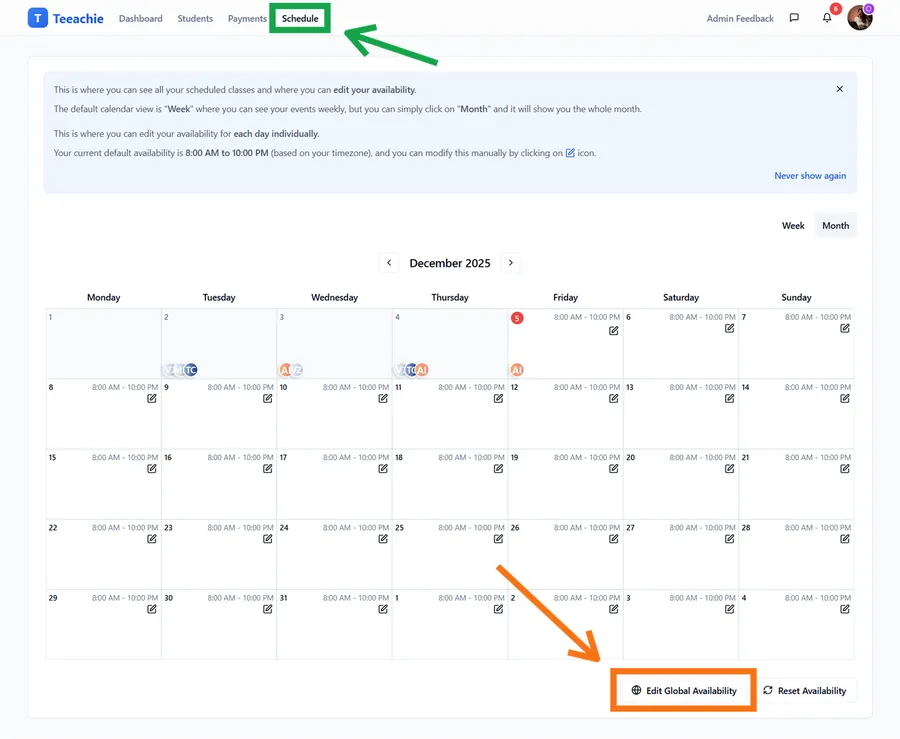
Two ways to set availability
Teeachie offers two approaches for managing availability:
Global availability (quick setup)
The Edit Global Availability dialog lets you set a default start and end time across multiple dates at once. This is ideal for initial setup or bulk changes.
Per-day availability (detailed control)
Click on any day in the calendar and choose Edit availability to customize that specific day. This per-day dialog lets you:
- Toggle the day on/off
- Add multiple time windows (e.g., morning and evening)
- Block specific dates
Set your default schedule
Using Edit Global Availability:
- Toggle which days you teach
- Set your default start and end times
- Click Save
Example schedule
| Day | Available | Hours |
|---|---|---|
| Monday | Yes | 9:00 AM - 5:00 PM |
| Tuesday | Yes | 9:00 AM - 5:00 PM |
| Wednesday | Yes | 9:00 AM - 12:00 PM |
| Thursday | Yes | 2:00 PM - 8:00 PM |
| Friday | Yes | 9:00 AM - 5:00 PM |
| Saturday | No | - |
| Sunday | No | - |
Add multiple time windows
To set different windows within a specific day (e.g., morning and evening):
- Click the date in the calendar
- Choose Edit availability to open the per-day dialog
- Click Add another window
- Set the start and end times for each window
- Click Save Changes
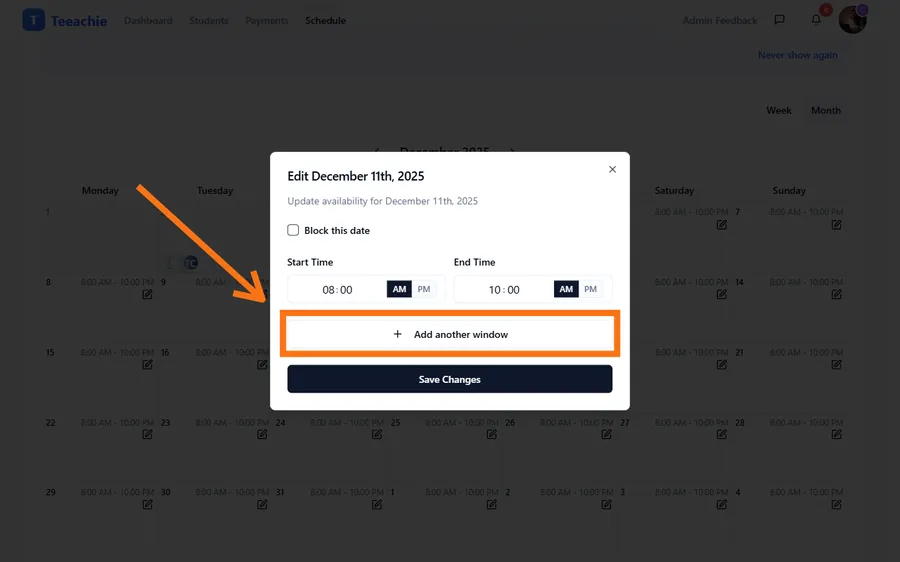
Example: Teaching mornings and evenings:
- Window 1: 8:00 AM - 12:00 PM
- Window 2: 6:00 PM - 9:00 PM
How availability affects scheduling
Your availability is used in several ways:
When you schedule classes
- The calendar highlights your available times
- You can still schedule outside your availability if needed
When students self-schedule
- Students can only book during your available times
- Unavailable times are grayed out and not selectable
Conflict prevention
- Teeachie highlights conflicts and may prevent booking times that clash with existing classes
- Helps prevent accidentally overbooking yourself
Timezone handling
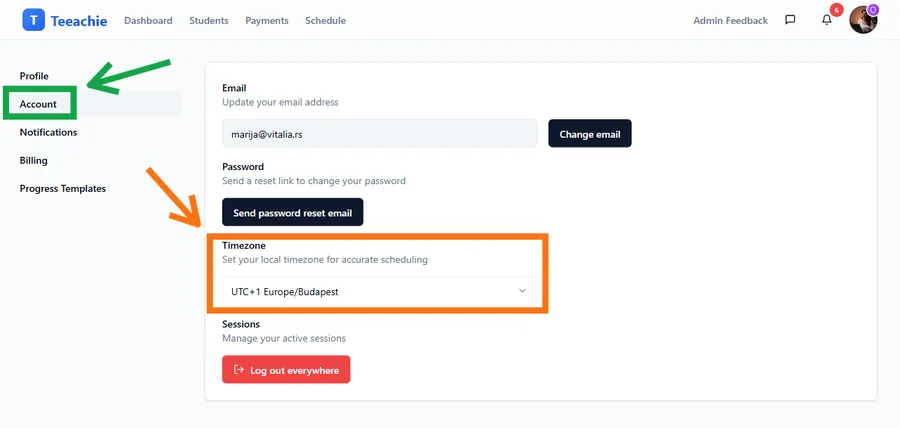
Your availability is set in your local timezone (configured in Settings).
- Times display in your timezone throughout Teeachie
- Students see times converted to their timezone automatically
- If you travel, update your timezone in Settings to keep schedules accurate
Block specific dates
For holidays, vacations, or days off, you can block specific dates:
- In the Schedule view, click on the date you want to block
- Use the available option to mark that date as unavailable
- The day will show as blocked for scheduling
Tip: For extended time off, block multiple days at once using the date range selector.
Best practices
Be realistic
Set availability that you can consistently maintain. It’s better to have fewer available hours that you always honor than many hours you frequently cancel.
Include buffer time
If you need breaks between classes, set your availability to end earlier than your actual limit. For example, if you want a 15-minute break between classes, account for that in your end times.
Review regularly
Check your availability monthly to ensure it still matches your teaching schedule. Update it as your routine changes.
Consider your students’ timezones
If you teach students in different timezones, consider setting availability that works for them. Early morning or evening slots may work better for international students.
Troubleshooting
Changes not saving
- Make sure you click Save Changes after editing
- Refresh the page and check if settings persisted
- Try a different browser if issues continue
Availability not showing on calendar
Your availability settings affect the background shading on the calendar. If colors aren’t showing:
- Check that you have days enabled
- Verify times are set correctly
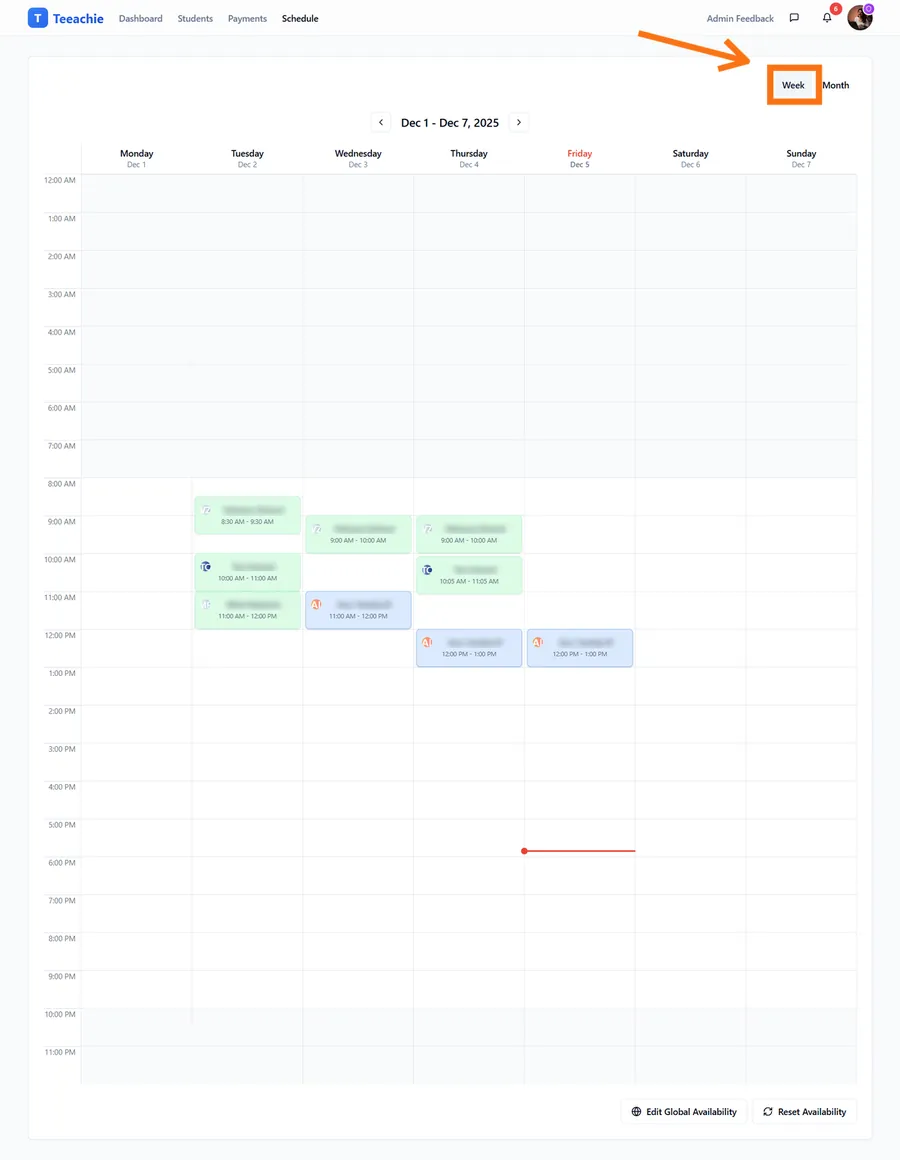
- Make sure you’re in Week view (not Month) to see availability shading
Students booking outside availability
If student self-scheduling is enabled, they should only see your available times. If they’re booking outside:
- Verify availability is saved correctly
- Check if you manually overrode availability for specific dates
What’s next?
- Schedule a class – Book your first session
- Enable student self-scheduling – Let students book their own classes
- Back-to-back classes – Configure buffer times
Need help?
Having trouble with availability? Contact support and we’ll assist you.