Enable student self-scheduling and set limits
Let students book their own classes within your availability. Learn about the built-in eligibility rules, booking limits, and time windows.
Enable student self-scheduling
Student self-scheduling lets your students book classes on their own, within the times you’ve set as available. This saves you time coordinating schedules while keeping you in control.
How self-scheduling works
When enabled, eligible students can:
- View your available time slots
- Select a time that works for them
- Book a class instantly
You still control:
- When you’re available (your availability settings)
- Who can self-schedule (through the eligibility system)
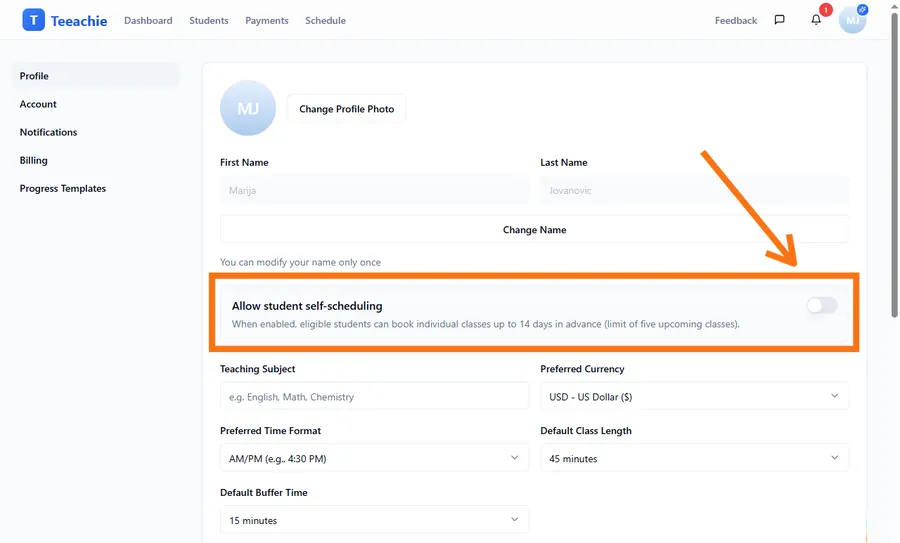
Enable self-scheduling
- Go to Settings (click your avatar → Settings)
- Open Profile settings
- Turn on Allow student self-scheduling
- Save your profile
Eligibility requirement
Students must complete at least one 1:1 class before they can self-schedule. This ensures:
- You’ve met the student before they book independently
- They understand your teaching style
- You’ve verified they’re a good fit
What makes a student eligible:
- They have at least one completed individual (1:1) class with you
- Group class attendance does not count toward eligibility
Note: Students who aren’t yet eligible see a message explaining they must complete their first teacher-scheduled class before self-scheduling.
Built-in booking rules
Teeachie has built-in rules to ensure fair and manageable self-scheduling:
Booking window
Students can only book within a specific time range:
- Minimum advance: 24 hours – Students can’t book same-day classes
- Maximum advance: 14 days – Students can only see and book slots in the next 2 weeks
Upcoming class limit
Students can have a maximum of 5 upcoming classes at any time. This:
- Prevents students from blocking your entire calendar
- Encourages regular attendance before booking more
- Keeps your schedule flexible for other students
Example: If a student has 5 upcoming classes, they must complete one before booking another.
What students see
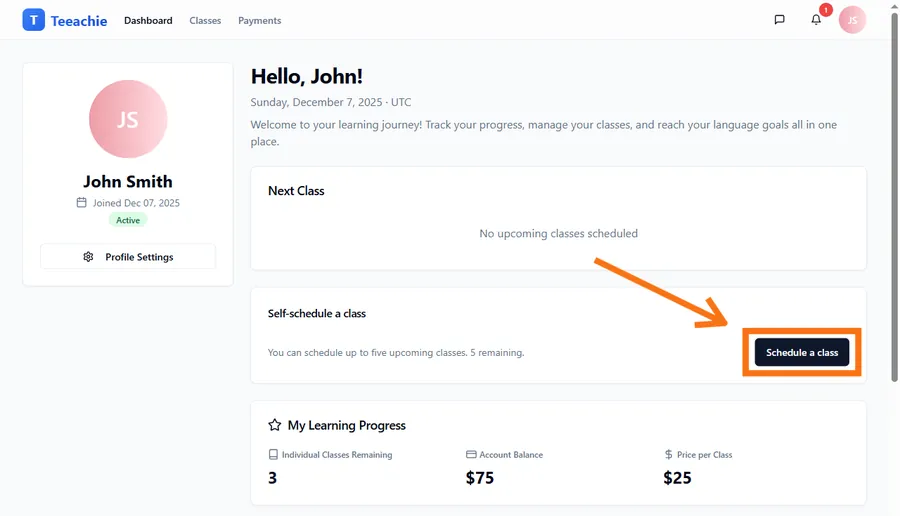
When self-scheduling is enabled, eligible students see:
- A Book a Class button on their dashboard
- Your available time slots in a calendar view
- Only times within the booking window (next 24 hours to 14 days)
If they’re not eligible
Students who haven’t completed a 1:1 class yet see a message like:
“Attend at least one teacher-scheduled class before self-scheduling.”
If they’ve hit the limit
Students at their booking limit see:
“You’ve reached your limit of 5 upcoming classes. Complete a class to book more.”
Notifications
When a student self-schedules:
- You receive an in-app notification
- The class appears on your calendar immediately
Best practices
Keep availability accurate
Students can only book during your available times. Keep your availability updated to prevent unwanted bookings.
Communicate your policy
Tell students that self-scheduling is available and explain any rules (your cancellation policy, when they can book).
Monitor bookings
Check your calendar regularly to stay aware of self-scheduled classes.
Troubleshooting
Students can’t see available times
- Check that self-scheduling is enabled in your settings
- Verify the student has completed at least one 1:1 class (group classes don’t count)
- Ensure your availability is set up
- Confirm times fall within the booking window (24h to 14 days ahead)
Student booked wrong time
Students can’t cancel self-scheduled classes directly – they need to message you. You can cancel and reschedule the class as needed.
Student can’t book despite being eligible
Check if the student already has 5 upcoming classes. They must complete one before they can book more.
What’s next?
- Set your availability – Configure when students can book
- Schedule a class yourself – Book manually when needed
- Student self-scheduling guide – What students see
Need help?
Questions about self-scheduling? Contact support and we’ll assist you.