In-app notifications for teachers
Understand the notification system and learn about the different types of alerts you'll receive.
In-app notifications for teachers
Teeachie keeps you informed with real-time notifications. This guide explains the notification system and what alerts you’ll receive.
Notification types
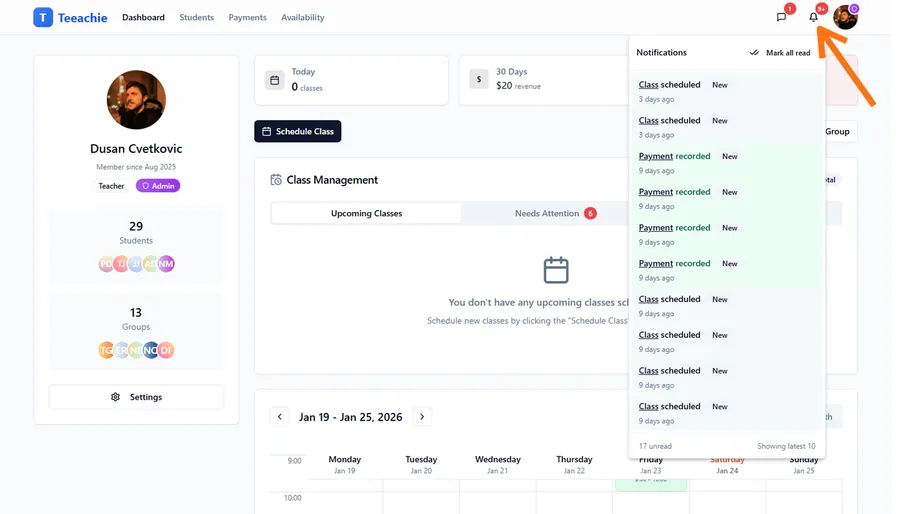
The bell icon shows notifications for key events. Note that messages have their own separate message icon with unread badge – they don’t appear in the bell notification panel.
Class notifications
- Class scheduled – A class was scheduled (including self-scheduled by students)
- Class rescheduled – A class time was changed
- Class cancelled – A scheduled class was cancelled
Student notifications
- Invitation accepted – Student joined from your invitation
Payment notifications
- Payment recorded – New payment logged
Content notifications
- Homework submitted – Student uploaded homework
- Material added – New material was added to a class
Access notifications
- Look for the bell icon in the top navigation
- Click to open the notification panel
- View recent notifications
- Click any notification to go to related content
Notification indicators
Unread count
A badge on the bell icon shows how many unread notifications you have.
Visual highlighting
New notifications appear highlighted until you view them.
Timestamp
Each notification shows when it occurred.
Real-time updates
Notifications appear in real-time:
- No need to refresh
- Badge updates automatically
- Panel shows new items immediately
Important notifications
Some notifications require prompt attention:
Time-sensitive
- Class cancellations
- New bookings (class scheduled)
- Class rescheduled
Informational
- Homework submitted
- Material added
- Invitation accepted
Notification actions
From the notification panel, you can:
Click to navigate
Click any notification to go directly to the relevant page:
- Class notification → Class page
- Student notification → Student profile
- Homework notification → Class page
Clear notifications
Mark notifications as read individually or all at once.
Notification settings
To customize your notifications:
- Go to Settings
- Find Notifications section
- Toggle notification groups on/off
- Save changes
Available toggles
- Class notifications – Scheduling changes and updates
- Payment notifications – Payment activity
- Homework & Materials – Student submissions and new content
Note: All notifications are currently in-app only. Email and other notification channels may be added in future updates.
Best practices
Check regularly
Review notifications at least daily to stay informed.
Act promptly
Respond to important notifications like bookings or messages quickly.
Clear old notifications
Keep your notification panel manageable by clearing processed items.
Configure preferences
Disable notification groups you don’t need to reduce noise.
Mobile access
On mobile devices:
- Same notification system
- Responsive panel design
- Touch-friendly interaction
Troubleshooting
Not receiving notifications
- Ensure you’re logged in
- Try refreshing the page
- Check you haven’t disabled that notification group in Settings
Too many notifications
- Review notification settings
- Disable less important groups
- Clear old notifications regularly
Notifications not clearing
- Try clicking “Mark all as read”
- Refresh the page
- Clear browser cache if persistent
What’s next?
- Send messages – Communicate with students
- Use the inbox – Manage conversations
- Student self-scheduling – Understand booking notifications
Need help?
Issues with notifications? Contact support and we’ll assist you.