Using the messaging inbox drawer
Learn how to access and manage your message inbox to view conversations with students and groups.
Using the messaging inbox drawer
The inbox is where all your conversations live. This guide shows you how to access and use it effectively.
Access your inbox
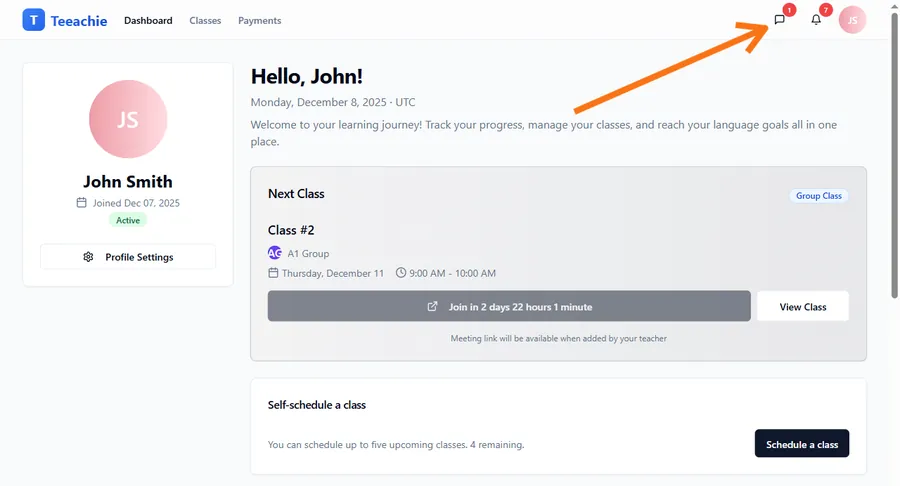
- Look for the message icon (speech bubble) in the top navigation bar
- Click to open the messaging drawer
- View your conversations
Inbox overview
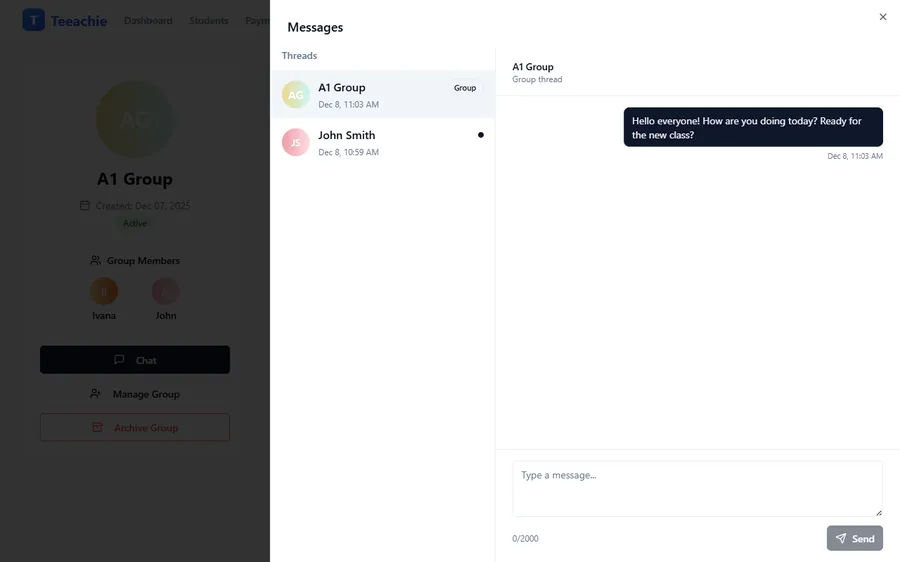
The inbox drawer shows:
- Conversation list – All your message threads
- Student or group name – Who the conversation is with
- Unread dot – A small dot appears next to unread threads
- Timestamps – When the last message was sent
Conversation types
Individual conversations
Shows the student’s name and avatar. Only between you and that student.
Group conversations
Shows the group name. All group members can participate.
Read a conversation
- Click on a conversation in the list
- The full message thread opens
- Read through the history
- Type a reply if needed
Unread indicators
New messages are highlighted:
- Badge count on the message icon shows how many threads have unread messages
- Small dot appears next to each unread thread
- These indicators clear automatically when you open the thread
Find conversations
To find a specific conversation:
- Open the messaging drawer
- Scroll through the conversation list
- Click on the student or group you’re looking for
Manage conversations
Mark as read
Opening a conversation marks it as read automatically.
Find older messages
Scroll up in a conversation to see older messages.
Start new conversation
To message someone new:
- Go to their profile (student or group)
- Click Chat
- A new conversation starts (or the existing one opens)
Real-time updates
The inbox updates in real-time:
- New messages appear immediately
- No need to refresh
- Notifications update the badge count
Inbox organization
Conversations are sorted by:
- Most recent activity – Latest activity at top
Note: There is no separate inbox page – all messaging happens inside this right-side drawer.
Best practices
Check regularly
Review your inbox daily to stay responsive.
Clear unread indicators
Open conversations to keep your inbox organized.
Scroll to find conversations
Conversations are sorted by recent activity, so scroll down to find older ones.
Mobile access
On mobile devices:
- Same inbox functionality
- Responsive design adapts to screen size
- Touch-friendly conversation selection
Troubleshooting
Inbox not loading
- Close and reopen the drawer
- Refresh the page
- Check your internet connection
- Clear browser cache if persistent
Missing conversations
- Scroll down the list – conversations are sorted by recent activity
- The person may not have messaged yet
- Try starting a new conversation from their profile
Messages not appearing
- New messages arrive automatically via real-time updates
- If the drawer feels stale, close and reopen it or reload the page
What’s next?
- Send messages – Start conversations
- Notification settings – Customize alerts
- Dashboard overview – Navigate the app
Need help?
Issues with your inbox? Contact support and we’ll assist you.