Send messages to a student or group
Learn how to communicate with your students through Teeachie's built-in messaging system.
Send messages to a student or group
Teeachie includes a messaging system for communicating with your students. This guide shows you how to send messages.
Start a conversation
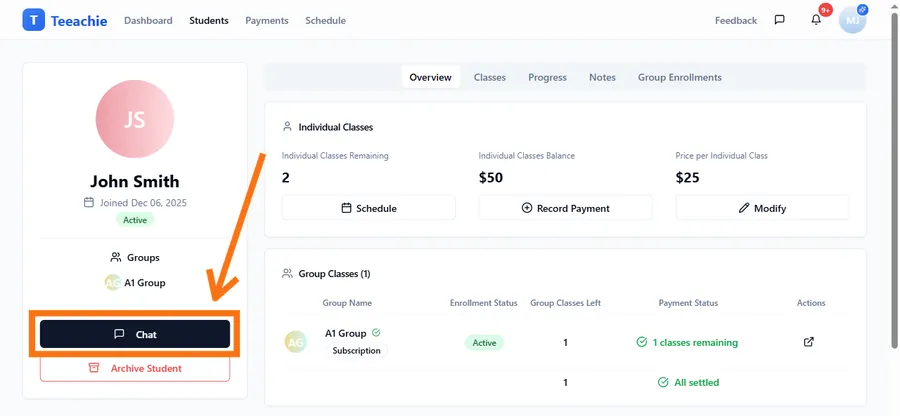
With an individual student
- Go to the student’s profile
- Click Chat (with the message icon)
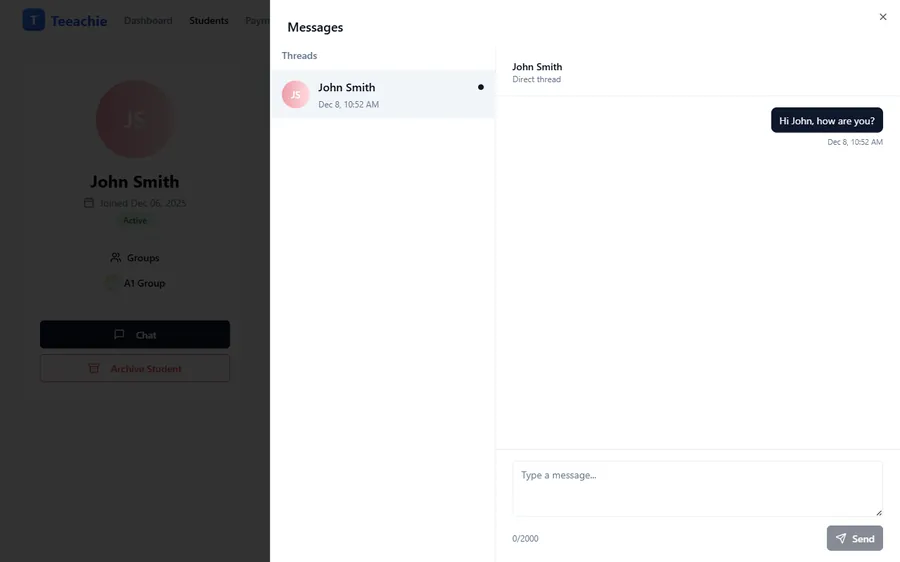
- The messaging drawer opens with your conversation
- Type your message and click Send
Tip: Press Enter to send your message quickly. Use Shift+Enter to add a new line.
With a group
- Go to the group profile
- Click Chat (with the message icon)
- The messaging drawer opens with the group conversation
- Type your message and click Send
The message goes to all group members.
Compose a message
When writing a message:
- Type in the message field
- Press Enter to send, or Shift+Enter to add a new line
- Keep messages clear and concise
Reply to messages
When a student messages you:
- The message icon in the header shows a badge with unread count
- Click the icon to open the messaging drawer
- Find the conversation (unread threads have a dot indicator)
- Type your reply
- Click Send
Replies stay in the same conversation thread for easy tracking.
Message types
Direct messages
One-on-one conversations with individual students. Only you and that student can see these messages.
Group messages
Messages to an entire group. All group members can see and reply to these messages.
What students see
When you send a message:
- The message icon in their header shows an unread badge
- The message appears in their messaging drawer
- They can reply directly
Formatting tips
Messages are plain text. You can:
- Use Shift+Enter to add line breaks for paragraphs
- Keep messages focused on one topic
Common use cases
Class reminders
“Hi Maria! Just a reminder that we have class tomorrow at 3pm. See you then!”
Homework feedback
“Great work on your essay! I noticed a few grammar points we should review. Let’s discuss in our next class.”
Schedule changes
“I need to reschedule our Thursday class. Would Friday at the same time work for you?”
Group announcements
“Hello everyone! Our group class this week will focus on conversation practice. Please come prepared with a topic you’d like to discuss.”
Best practices
Be professional
Remember that messages are written records. Keep communication professional and appropriate.
Respond promptly
Students appreciate timely responses. Try to reply within 24 hours.
Use for logistics
Messaging works best for scheduling, reminders, and quick updates. For detailed teaching content, use class materials instead.
Keep groups focused
Group messages should be relevant to all members. For individual matters, use direct messages.
Troubleshooting
Message not sending
- Check your internet connection
- Try refreshing the page
- Ensure the message isn’t empty
Student didn’t receive
- Ask them to check their messaging drawer (message icon in header)
- Have them refresh the page
- Verify the conversation exists in your drawer
What’s next?
- Use the messaging inbox – View all conversations
- Notification settings – Customize your alerts
- Add class materials – Share teaching content
Need help?
Issues with messaging? Contact support and we’ll assist you.