Record payments for group enrollments
Learn how to process payments for students enrolled in group offers, including packages and subscriptions.
Record payments for group enrollments
When students pay for group offers, you record payments against their enrollment. This guide covers the group payment workflow.
Group payments vs individual payments
| Individual | Group |
|---|---|
| Pay for credits | Pay for enrollment |
| Credits deducted per class | Sessions tracked per enrollment |
| One credit pool | Per-enrollment session count |
Record a group payment
- Open the group profile
- Go to the Offers & Finances tab
- In the Member Payment Status section, find the student
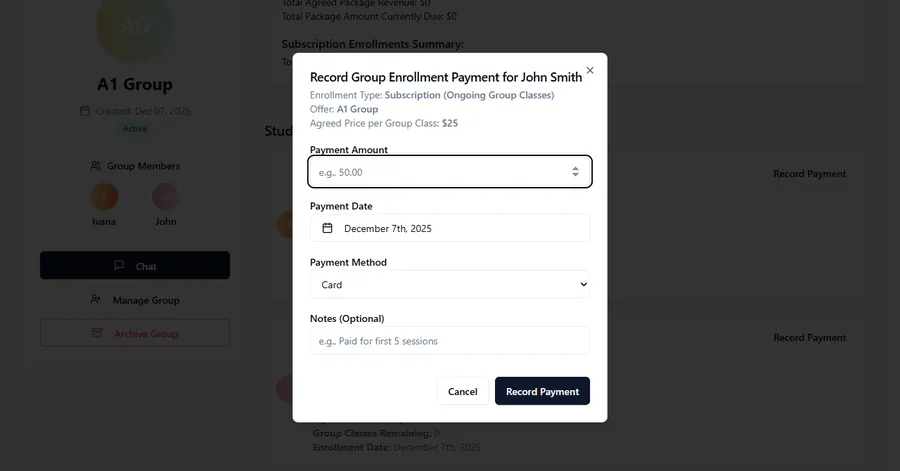
- Click Record Payment
- Fill in the details:
- Amount – How much they paid (in your preferred currency)
- Payment date – When the payment was received
- Payment method – Card, cash, bank transfer, or other
- Notes (optional) – Any additional details
- Click Save
Payment affects enrollment status
Recording a payment can change enrollment status:
| Before | After payment |
|---|---|
| Pending initial payment | Active |
| Awaiting payment | Active (balance cleared) |
Enrollments typically start as “Pending initial payment” and move to “Active” once the first payment is recorded. Outstanding amounts are shown via warnings and badges on the enrollment card.
Note: Students can still be marked as attending even before their enrollment is fully paid – attendance dialogs include all enrolled students regardless of payment status.
View enrollment payment history
To view all payments for a specific group enrollment, use the Payments Hub:
- Go to Payments in the top navigation
- Use the Type filter to select Group
- Optionally, search for the student’s name
- View the payment history filtered to group payments
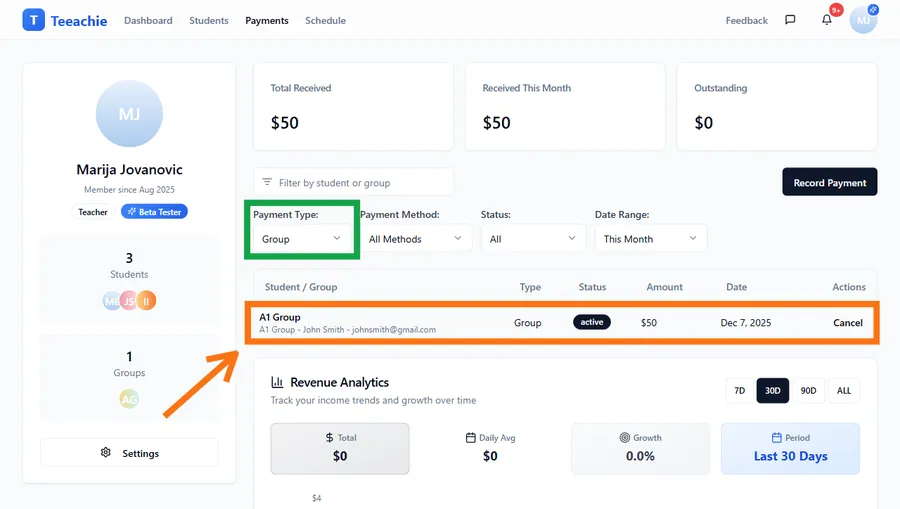
The Payments Hub shows all group enrollment payments with details including amount, date, payment method, and enrollment information.
Package payments
For package offers:
Full payment
- Student pays the agreed package price
- All sessions are credited
- Status moves to Active
Partial payment
- Partial payments accumulate toward the full package price
- No additional sessions are credited until total paid reaches the agreed package price
- Outstanding amount is shown on the enrollment card
Note: Teeachie doesn’t prevent attendance based on payment status. Students can attend even with partial payments – it’s your choice how to handle this.
Subscription payments
For subscription offers:
How credits work
- Each payment adds group class credits based on the agreed price per session
- Credits = Amount paid ÷ Price per session
- If students attend more sessions than they’ve paid for, the enrollment shows a deficit
Initial payment
- First payment activates the enrollment
- Credits are added based on the amount
Recurring payments
- Record each payment as it comes in
- Optionally note the period (e.g., “January 2025”)
- Each payment adds more credits
Behind on payments
- If attendance outpaces payments, the enrollment shows “Awaiting payment”
- The student appears in “Payments Due” until additional payments are recorded
From the student profile
You can also record group payments from the student’s individual profile:
- Open the student’s profile
- Find their Group Enrollments
- Click on the enrollment
- Record payment from there
This is convenient when reviewing a specific student’s status.
From the Payments Hub
You can also record group payments from the Payments page:
- Go to Payments in the top navigation
- Click the Record Payment button at the top
- Choose Group Payment in the dialog
- Select the student and enrollment
- Fill in payment details and save
Alternatively, use Class Management Hub → Payments Due to see students with outstanding balances and record payments from there.
Multiple offers scenario
If a student is enrolled in multiple offers:
- Each enrollment has separate payments
- Track sessions independently
- Record payments to the correct enrollment
Example:
- Maria is in “10-Session Package” and “Monthly Conversation Club”
- She pays for the package → record to that enrollment
- She pays monthly → record to subscription enrollment
Best practices
Record immediately
Enter payments as they’re received for accurate tracking.
Match to correct enrollment
Double-check you’re recording to the right offer if a student has multiple.
Note recurring payments
For subscriptions, note the billing period in the payment.
Review pending enrollments
Check for pending enrollments that need payment follow-up.
Troubleshooting
Enrollment still shows Pending
- Verify the payment was saved
- Check the enrollment wasn’t cancelled
- Refresh the page
Paid wrong enrollment
- Note the error
- Record the correct payment
- Contact support if reversal needed
Student disputes payment
- Review payment history
- Check notes and dates
- Discuss with student to resolve
What’s next?
- Use the Payments Hub – Central payment tracking
- Group offers explained – Understanding offers
- Track attendance – Mark class attendance
Need help?
Questions about group payments? Contact support and we’ll help.