Why a student or class might be missing
Understand why students, classes, or data might not appear where you expect and how to find them.
Why a student or class might be missing
Can’t find a student, class, or piece of data? This guide helps you understand why things might be hidden and how to find them.
Missing students
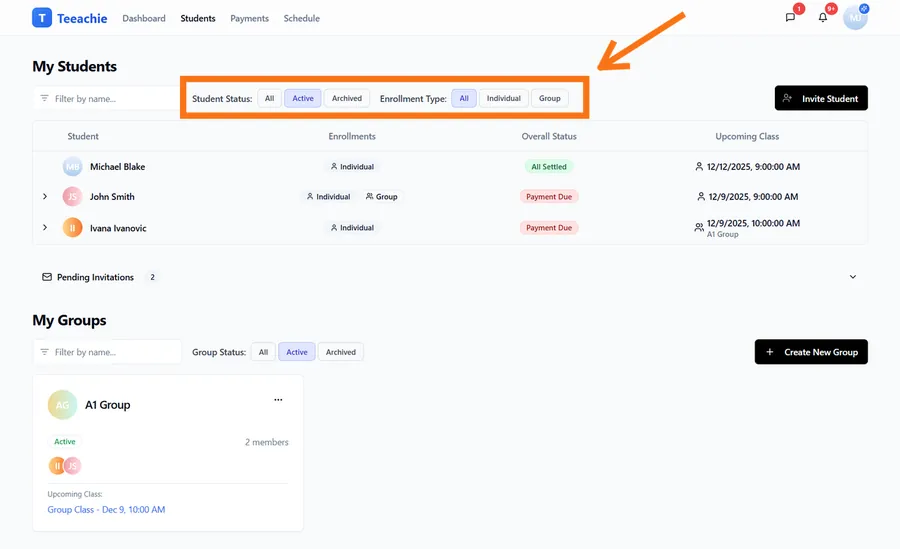
Check your filters
The Students page has filters that may be hiding entries:
- Go to Students
- Look at the filter toggles (Student Status and Enrollment Type)
- Check if “Active” or a specific enrollment type is selected
- Click All on both filters to see all students
Student might be archived
Archived students don’t appear when “Active” filter is selected:
- Click the Archived toggle in the Student Status filter
- Or click All to see both active and archived students
- If found, you can open their profile and unarchive them
Invitation not yet accepted
If you added a student recently:
- Check their status – it may say “Pending”
- The student hasn’t created their account yet
- They exist but aren’t fully active
- Consider resending the invitation
Wrong search terms
When searching:
- Try their full name
- Try their email address
- Check for typos
- Use partial matches if supported
Missing classes
Check the date range
Your calendar shows specific time periods:
- Navigate to the correct week/month
- Check if the class is in the past or future
- Adjust the date view to find it
Class was cancelled
Cancelled classes may be hidden:
- Look for a “Show cancelled” option
- Check the class history on the student profile
- Cancelled classes may appear grayed out
Filter is applied
Calendar or class lists may have filters:
- Check for active filters
- Try clearing all filters
- Look for “All classes” view option
Group class vs individual
If looking for a specific class type:
- Check both individual and group sections
- The class may be categorized differently
- Check the group’s schedule if it was a group class
Missing groups
Check group status
Groups can be archived:
- Use filters on the Groups view to include archived items
- Look for an archived marker on group profiles
- The group may need to be unarchived to appear in regular lists
Member vs group confusion
If you’re looking for a student in a group:
- Go to the group profile
- Check the Members list
- The student may not have been added yet
Missing payments
Check the payment location
Payments are in different places:
- Student profile – Individual payments
- Group enrollment – Group payments
- Payments Hub – All payments combined
Date range filter
Payment lists often filter by date:
- Check the date range filter
- Expand to include the expected date
- Try “All time” if available
Payment not recorded
If a payment should exist but doesn’t:
- It may not have been recorded yet
- Check if someone else records payments
- Record it now if missing
Missing class materials
Check the correct class page
Materials are on specific class pages:
- Make sure you’re viewing the right class
- Check the date matches
- Navigate to class page from calendar
Materials not uploaded
Materials only appear if added:
- Verify you uploaded the file
- Check if the upload completed
- Try uploading again
Wrong section
Materials might be in a different section:
- Check Materials section
- Check Notes section
- Look in all tabs on the class page
Missing notifications
Already marked as read
You may have already seen them:
- Open the notification bell dropdown to check recent items
- Older events may no longer show in the compact list
- The underlying action (class scheduled, payment recorded) still happened – it just won’t appear as a new notification
Notification settings
Some notifications may be disabled:
- Check Settings > Notifications
- Enable the types you want to see
- Changes apply to future notifications
General troubleshooting steps
1. Refresh the page
Data may not have loaded fully. Refresh and try again.
2. Clear filters
Filters are the most common cause of “missing” data. Clear all filters and search again.
3. Check different views
The data may appear in a different section or tab than expected.
4. Wait and retry
New data can take a moment to appear. Wait 30 seconds and refresh.
5. Try a different browser
Caching issues can cause display problems. Try incognito mode.
Data that’s actually gone
Some situations where data may be permanently unavailable:
Deleted data
If you or someone else deleted it:
- Deleted items may not be recoverable
- Contact support quickly if deleted by mistake
Old data
Some historical data may be:
- Summarized rather than detailed
- Available only in exports
- Subject to retention policies
When to contact support
Reach out if:
- You’re sure data should exist but can’t find it
- Filters are cleared but data is missing
- You suspect a technical issue
- Important data appears to be lost
Provide:
- What you’re looking for
- Where you’ve looked
- When it was last visible
- Any error messages
What’s next?
- Manage student invitations – Check pending students
- Archive students – Find archived entries
- Contact support – Get help finding data
Need help?
Can’t find something important? Contact support with details about what’s missing.