Self-schedule a class (when your teacher allows it)
Learn how to book your own classes when your teacher has enabled self-scheduling.
Self-schedule a class
Some teachers allow you to book classes yourself. This guide explains how self-scheduling works.
Is self-scheduling available?
Your teacher controls whether you can self-schedule. If it’s enabled, you’ll see a Schedule a class button on your dashboard.
Requirements
Before you can self-schedule:
- Your teacher must enable the feature
- You typically need to have attended one class first
- Your teacher may require that you have enough balance or an active plan before booking
If you don’t see the option, self-scheduling may not be enabled for you.
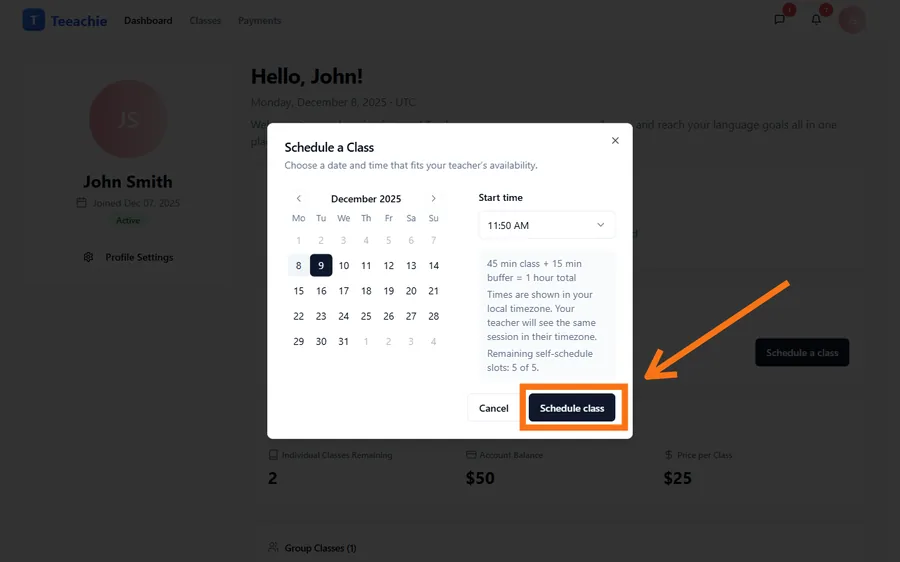
Schedule a class
- Find the Schedule a class button on your dashboard
- View your teacher’s available times
- Select a date and time that works for you
- Choose the class duration (if options available)
- Click Schedule to confirm
Available times
You’ll see your teacher’s available time slots:
- Green/available times can be booked
- Gray/unavailable times are taken or blocked
- Times show in your timezone
Booking window
Your teacher sets limits on when you can book:
- Minimum advance – How far ahead (e.g., 24 hours minimum)
- Maximum advance – How far into future (e.g., 14 days)
So you might see availability for the next 2 weeks but not same-day slots.
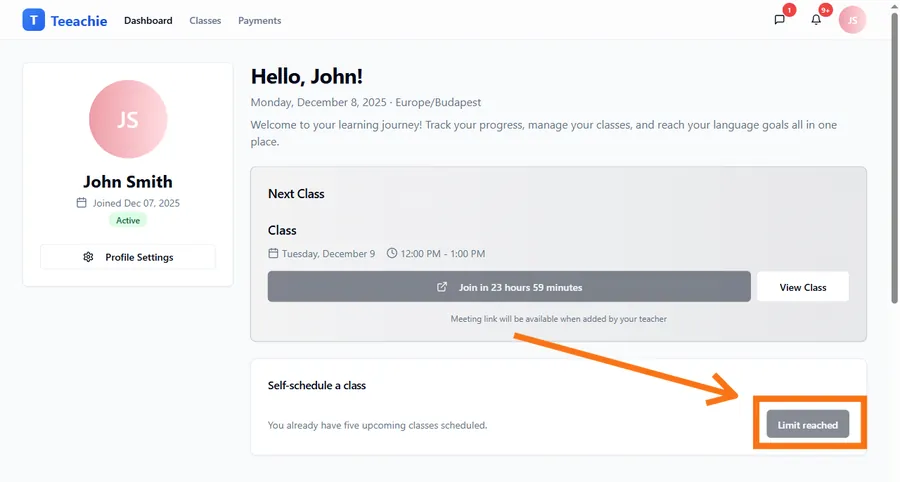
Booking limits
Your teacher may limit how many upcoming classes you can have:
- Common limit: 5 upcoming classes
- Once you reach the limit, complete a class to book more
If you see a message about limits, attend your scheduled classes first.
After booking
Once you book a class:
- It appears on your calendar
- Your teacher is notified
- The class is confirmed immediately
- You’ll see it in upcoming classes
Cancelling self-scheduled classes
If you need to cancel:
- Contact your teacher to request a cancellation
- Message your teacher as soon as possible
- They will cancel or reschedule for you
Note: Respect your teacher’s cancellation policy. Ask your teacher about any fees for cancellations within their notice period.
Not eligible yet?
If you see a message like “Complete one class first”:
This means your teacher requires you to attend at least one teacher-scheduled class before self-scheduling. This ensures:
- You’ve met your teacher
- You understand their teaching style
- You’re a good fit for self-scheduled classes
After completing your first class, self-scheduling should become available.
Tips for self-scheduling
Book in advance
Don’t wait until the last minute. Popular times fill up, and minimum advance requirements apply.
Be consistent
Try to book at similar times each week if you prefer routine.
Check your calendar first
Make sure the time slot works with your personal schedule before booking.
Have backup times in mind
If your preferred time isn’t available, be ready to choose an alternative.
Troubleshooting
Can’t see the booking option
- Self-scheduling may not be enabled for you
- You may need to complete a class first
- Ask your teacher about availability
No available times showing
- Your teacher may have limited availability
- Try looking at a different week
- Ask your teacher to add more times
Booking not confirmed
- Check your internet connection
- Refresh and try again
- Contact your teacher if issues persist
What’s next?
- View your classes – See your bookings
- Join a class – Find meeting links
- Message your teacher – About scheduling
Need help?
Questions about self-scheduling? Contact support or ask your teacher.