Find your class pages and materials
Learn how to access class pages and download materials your teacher shares for each lesson.
Find your class pages and materials
Your teacher shares materials for each class – slides, documents, worksheets, and more. Here’s how to find them.
Access class pages
Every class has a dedicated page with materials and details.
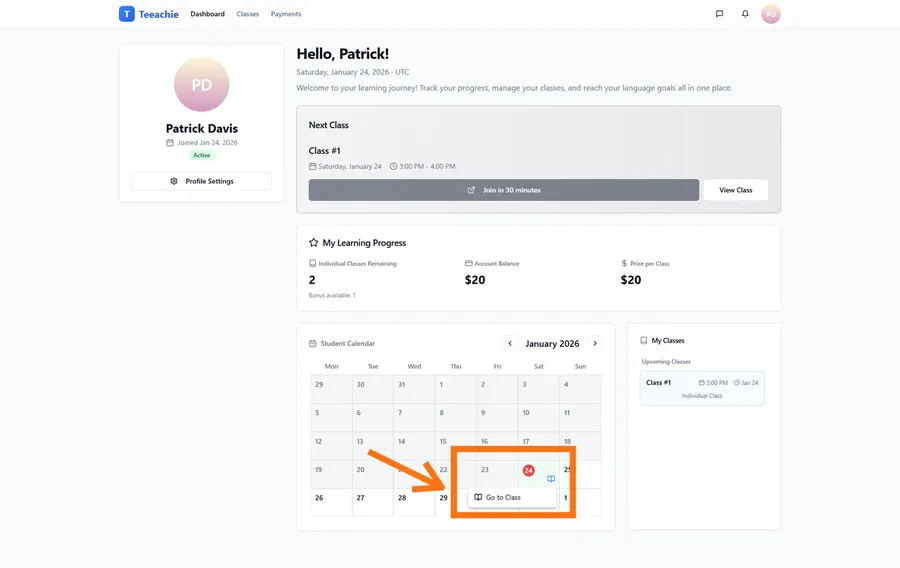
From your calendar
- Click on a class in your calendar
- Click View Class to open its page
- The class page opens with all details and materials
From the Next Class card
- On your dashboard, find the Next Class card
- Click the class to view details
- Access the full class page from there
Class page sections
Meeting link
At the top, you’ll find:
- Video call link (Zoom, Meet, etc.)
- Click to join when class starts
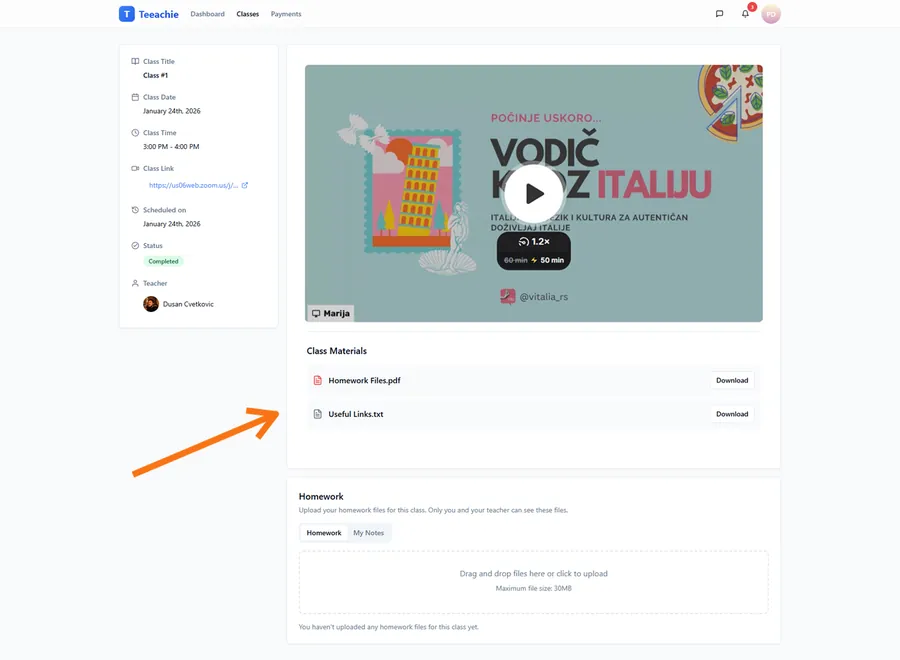
Materials
Files your teacher has shared:
- Lesson slides
- Worksheets
- Documents
- Audio or video files
Your notes
Space for your personal notes about the class.
Download materials
To download a file:
- Find the file in the Materials section
- Click the file name or download icon
- The file downloads to your device
- Open with the appropriate app
Supported file types
- Documents: PDF, DOC, DOCX
- Presentations: PPT, PPTX
- Spreadsheets: XLS, XLSX
- Images: PNG, JPG
- Audio: MP3, WAV
- Video: MP4 (may stream instead)
Before class
Review materials before your lesson:
- Check for anything to prepare
- Read assigned content
- Note questions to ask
Teachers often upload materials a day or more before class.
After class
Materials remain available after class completes:
- Review what was covered
- Re-download if needed
- Reference for homework
No materials yet?
If you don’t see materials:
- Your teacher may not have uploaded them yet
- Check back closer to class time
- Not all classes have additional materials
Materials for group classes
Group class materials work the same way:
- Access the group class page
- Same materials visible to all group members
- Download what you need
Organizing your downloads
Tips for managing materials:
- Create a folder for Teeachie materials
- Name files clearly (include date or topic)
- Keep organized by class or date
What’s next?
- Upload homework – Submit your work
- View your classes – Full schedule
- Message your teacher – Ask about materials
Need help?
Can’t find materials? Contact support or ask your teacher.
Updated December 2, 2025