Upload homework files for a class
Learn how to submit homework files to your teacher through the class page.
Upload homework files for a class
When your teacher assigns homework, you can upload your work directly to the class page. Here’s how.
Find the homework section
- Open the class page (from calendar or class list)
- Scroll to the Homework section
- You’ll see an upload area
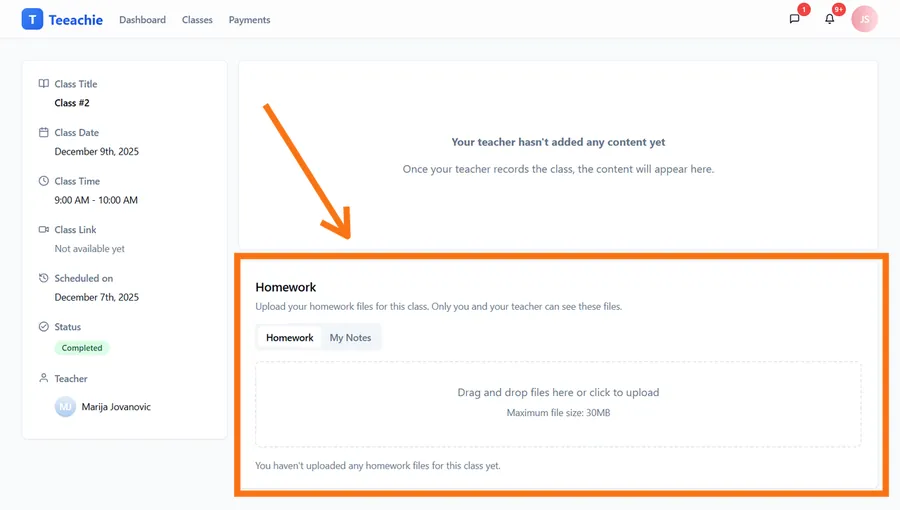
Upload your homework
- Click Upload or drag and drop your file
- Select the file from your device
- Wait for upload to complete
- Your file appears in the list
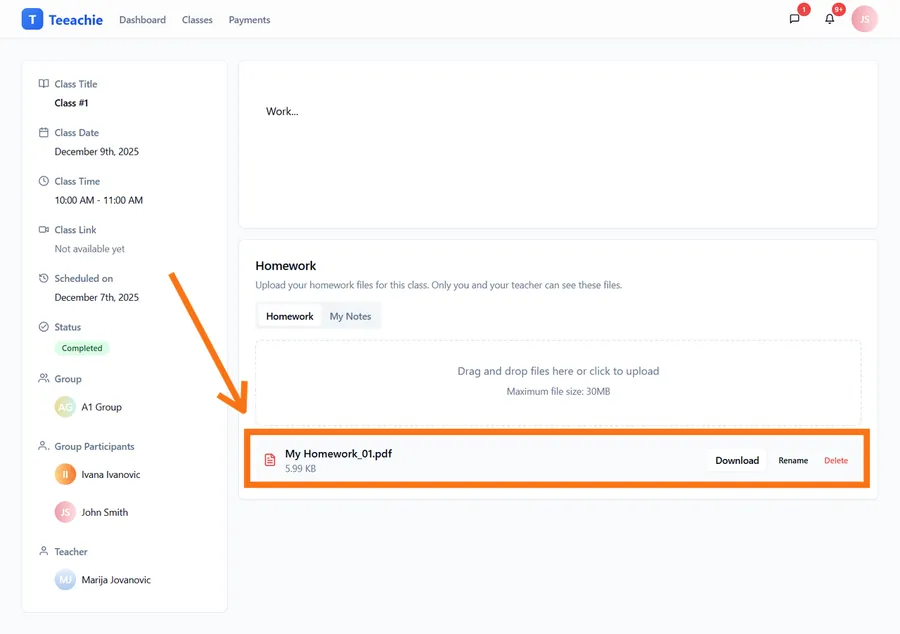
Supported file types
- Documents: PDF, DOC, DOCX
- Images: PNG, JPG (for handwritten work or photos)
- Spreadsheets: XLS, XLSX
- Audio: MP3, WAV (for speaking exercises)
- Presentations: PPT, PPTX
File size limits
- Large files may fail to upload
- If you have issues, try compressing the file or ask your teacher for alternatives
What your teacher sees
When you upload homework:
- Your teacher can see your submission and may receive a notification
- They can download and review your file
- They may provide feedback through messages
Replace or delete homework
If you uploaded the wrong file:
- Find the file in your homework list
- Click the delete or remove option
- Upload the correct file
Note: You can delete and re-upload files while your teacher is still working with this homework.
Multiple files
For assignments with multiple files:
- Upload each file separately
- Name files clearly (e.g., “Essay_Part1.pdf”, “Essay_Part2.pdf”)
- Make sure all files are uploaded before the deadline
Privacy
Your homework is private between you and your teacher:
- ✅ Your teacher can see your submissions
- ❌ Other students cannot see your homework
- ❌ Classmates in groups cannot see each other’s work
Tips for homework
Name files clearly
JohnSmith_Assignment3.pdf is better than document.pdf
Check the format
Make sure your teacher can open the file type you’re sending.
Upload before the deadline
Don’t wait until the last minute – upload issues can happen.
Verify upload completed
Check that your file appears in the list after uploading.
Common file types for homework
| Assignment type | Suggested format |
|---|---|
| Written essays | PDF or DOCX |
| Grammar exercises | PDF or DOCX |
| Vocabulary lists | PDF or XLSX |
| Speaking practice | MP3 or WAV |
| Handwritten work | JPG or PNG (scan/photo) |
Troubleshooting
Upload fails
- Check your internet connection
- Try a smaller file or different format
- Refresh the page and try again
File not appearing
- Wait a moment for processing
- Refresh the page
- Try uploading again
Wrong file uploaded
- Delete it and upload the correct one
- Do this promptly before your teacher reviews
What’s next?
- Access materials – Download teacher files
- View classes – See your schedule
- Message teacher – Ask questions
Need help?
Problems uploading? Contact support.
Updated December 2, 2025