View homework submissions from students
Learn how to access and review homework files that students submit for each class.
View homework submissions from students
Students can submit homework files for each class. This guide shows you how to find and review their submissions.
Where to find homework
Homework submissions appear on the class page:
- Open the class page (from calendar or student profile)
- Scroll to the Homework section
- View submitted files
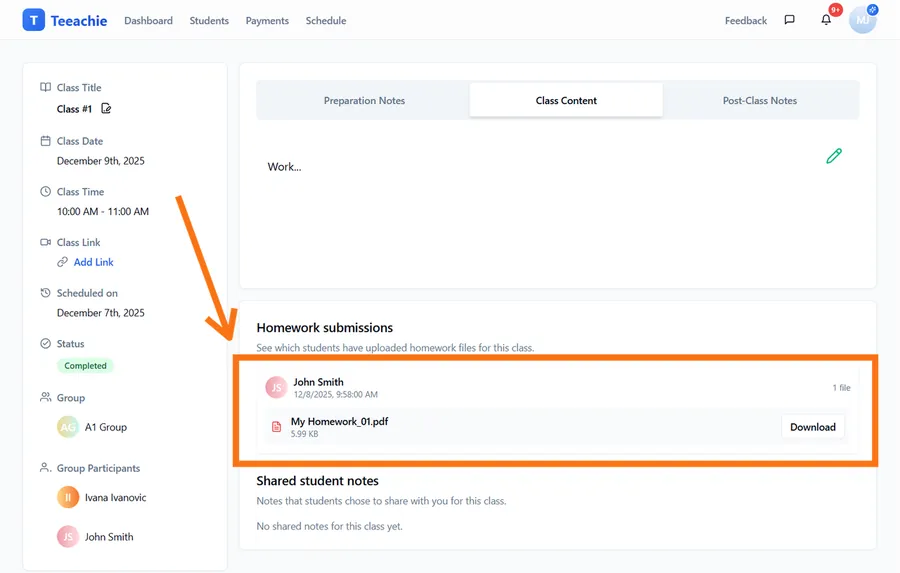
Homework submission details
For each submission, you can see:
- File name – The uploaded file
- Submitted by – Student name (for group classes)
- Submission time – When they uploaded it
- File size – Size of the upload
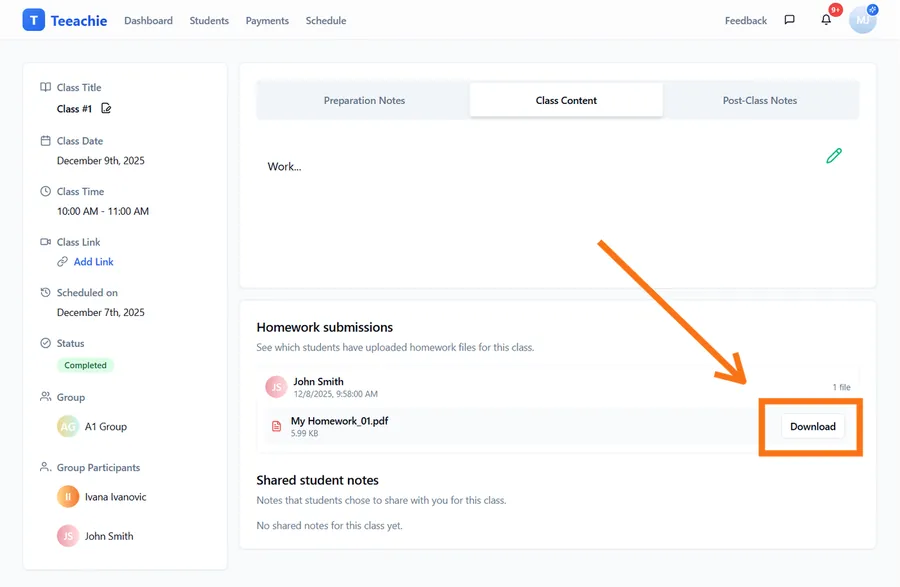
Download homework files
To review a submission:
- Find the file in the Homework section
- Click the Download button next to the file
- The file downloads to your computer
- Open and review with your preferred application
Group class homework
For group classes, homework works slightly differently:
- Each student submits their own files
- Submissions are labeled with the student’s name
- You’ll see one card per student who has submitted
- Students who haven’t submitted simply won’t appear in the list
Tracking submissions
In a group class, you might see:
- Maria’s card with her submitted files
- Juan’s card with his submitted files
- Students who haven’t submitted won’t have a card in the section
What students can submit
Students can upload various file types:
- Documents: PDF, DOC, DOCX
- Images: PNG, JPG (for handwritten work)
- Audio: MP3, WAV (for speaking exercises)
- Spreadsheets: XLS, XLSX
Note: There’s a per-student size limit (around 30MB of homework files per class). If a student hits the limit, ask them to use a cloud link instead.
View shared student notes
In addition to homework files, students can optionally share notes with you:
- Open the class page
- Look for the Shared student notes section
- View any notes students have chosen to share
Students have a private notes area (“My Notes”) where they can write personal notes. They can toggle “Share with teacher” to make notes visible to you.
Note: You only see notes students explicitly choose to share. Their private notes remain invisible to you.
Providing feedback
After reviewing homework, you can provide feedback through:
Class notes
Add feedback in your post-class notes for your own reference.
Direct messaging
Send a message to the student with your comments.
Next class discussion
Discuss the homework during your next session.
Tip: Students appreciate prompt feedback. Try to review homework before the next class.
Homework visibility
| Who | Can see submissions |
|---|---|
| Teacher | ✅ All student submissions |
| Student (own) | ✅ Their own submissions |
| Student (others) | ❌ Cannot see classmates’ homework |
Student submissions are private between you and that student.
Best practices
Review promptly
Check homework submissions before your next class so you can discuss them.
Give constructive feedback
Use messaging to provide specific, helpful feedback.
Set expectations
Let students know how and when you’ll review their work.
Track completion
For group classes, note who’s submitting regularly and who might need encouragement.
Troubleshooting
Can’t see any submissions
- Verify the student submitted homework (they may not have)
- Refresh the class page
- Check you’re viewing the correct class
File won’t download
- Try a different browser
- Check your internet connection
- Ask the student to re-upload if the file seems corrupted
Wrong file submitted
Students can delete and re-upload their files. Ask them to correct the submission.
What’s next?
- Class pages overview – Full guide to class pages
- Add meeting links and materials – Share resources with students
- Send messages to students – Provide homework feedback
Need help?
Questions about homework submissions? Contact support and we’ll assist you.