Update your profile, timezone, and avatar
Learn how to customize your profile settings including timezone, avatar, and personal details.
Update your profile, timezone, and avatar
Keep your profile up to date so your teacher has the right information and your classes show at the correct times.
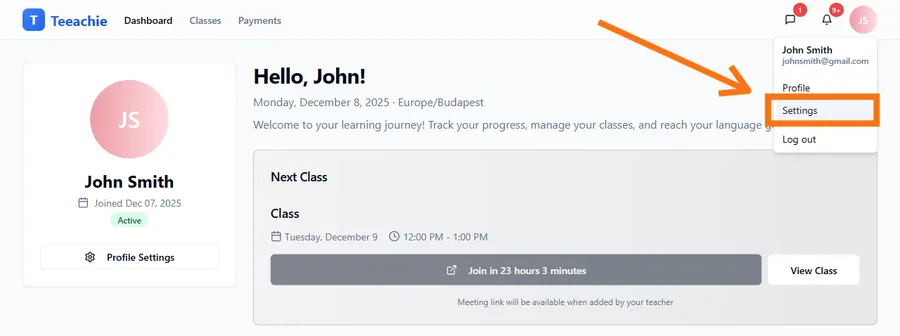
Access your settings
- Click your avatar in the top right corner
- Select Settings from the dropdown menu
- Your settings page opens with multiple tabs
In Settings, use the Profile tab to change your name and avatar, and the Account tab to adjust your timezone and time format.
Update your name
If you need to change your display name:
- Find the Name field
- Edit your name
- Click Save Changes
Your teacher will see this updated name on your profile.
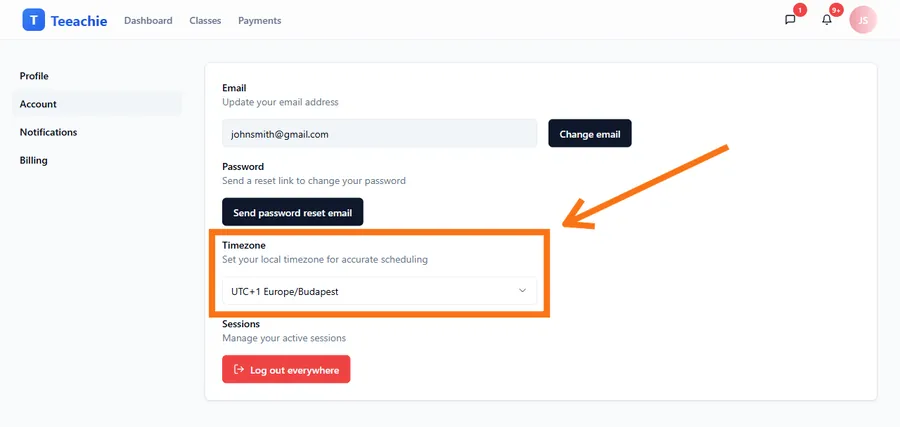
Set your timezone
Important: Your timezone affects how class times are displayed. Set it correctly to avoid confusion.
- Find the Timezone dropdown
- Select your timezone from the list
- Click Save Changes
How to find your timezone
- Search for your city name
- Or select by region (e.g., “America/New_York”)
- Your current time should match after saving
Why timezone matters
- Class times display in your timezone
- Your teacher sees times in their timezone
- Teeachie handles the conversion automatically
Choose time format
Select how times appear throughout the app:
- 12-hour – 3:00 PM
- 24-hour – 15:00
This is a personal preference and doesn’t affect your teacher’s view.
Change your avatar
Personalize your profile with an avatar:
Option 1: Upload a photo
- Click your avatar in the top right corner
- Select Settings from the dropdown
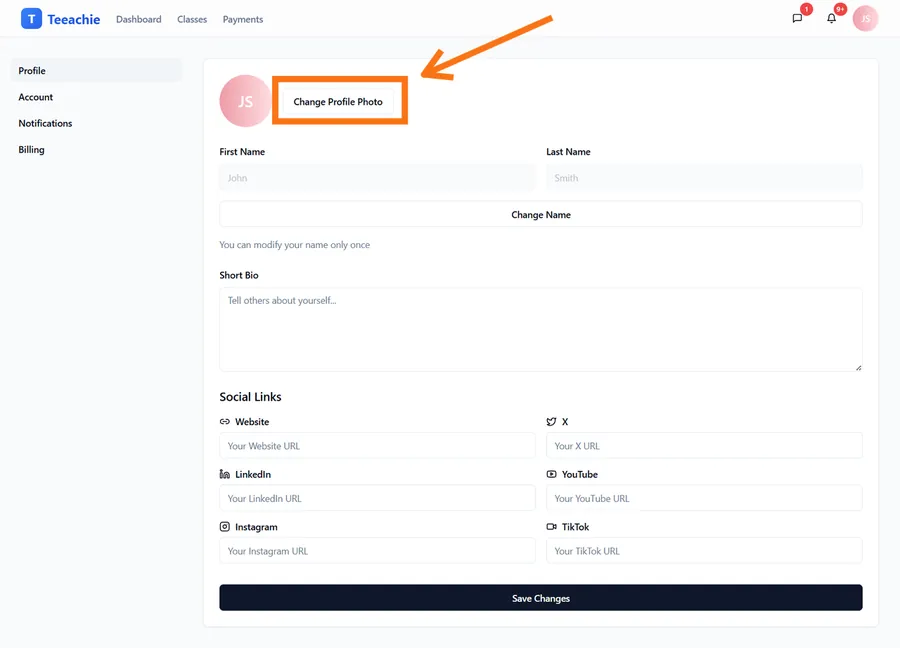
- Go to the Profile tab
- Click Upload Photo
- Choose an image from your device
- Crop if needed and save
Option 2: Use generated avatar
Teeachie can generate a unique avatar based on your email. This is the default if you don’t upload a photo.
Avatar guidelines
- Square images work best
- Minimum size recommended: 200x200 pixels
- Supported formats: JPG, PNG
What your teacher sees
Your teacher can view:
- ✅ Your name
- ✅ Your avatar
- ✅ Your timezone (for scheduling)
Your teacher cannot see:
- ❌ Your password
- ❌ Your private class notes (unless you choose to share them)
Saving changes
After making any changes:
- Scroll to find the Save Changes button
- Click it to save
- A confirmation message appears
Tip: Changes take effect immediately after saving.
Best practices
Keep timezone accurate
If you travel or move, update your timezone so class times remain correct.
Use a recognizable avatar
Your teacher will see your avatar throughout the app. A photo or distinctive image helps with recognition.
Check settings periodically
Review your settings occasionally to make sure everything is still correct.
What’s next?
- View your classes – Check your schedule
- Self-schedule a class – Book your own classes
- Sign in guide – Manage your login
Need help?
Issues with your profile settings? Contact support for assistance.