Reschedule or cancel a 1:1 class
Learn how to change class times, cancel sessions, and handle late cancellations with optional charging.
Reschedule or cancel a 1:1 class
Sometimes plans change. This guide shows you how to reschedule classes and cancel sessions when needed.
Reschedule a class
To move a class to a different time:
- Click on the class in your calendar
- Click Reschedule Class
- Select the new date and time
- Click Reschedule Class to confirm
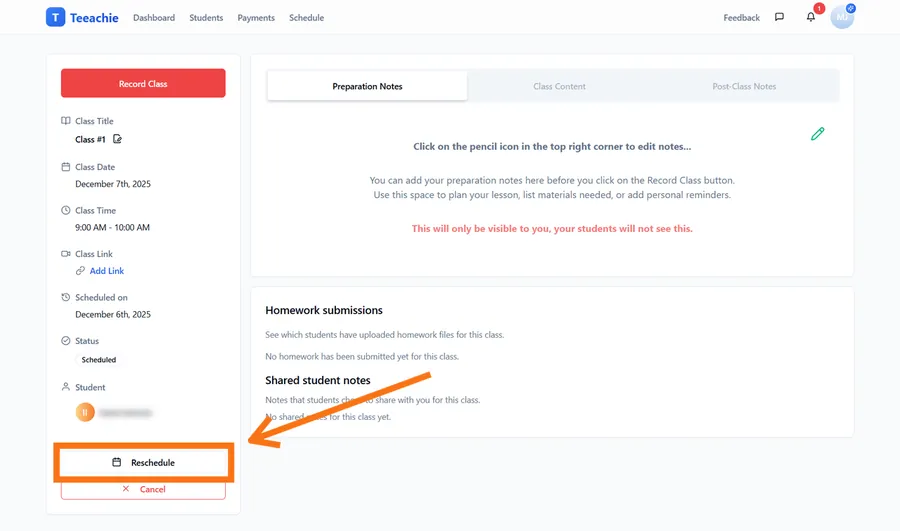
What happens when you reschedule
- The class moves to the new time
- Your student sees the new time on their dashboard and may receive an in-app notification
- The class page and materials stay connected
Cancel a class
To cancel a scheduled class:
- Click on the class in your calendar
- Click the Cancel button
- Click Yes, Cancel Class to confirm you want to cancel
- Choose whether to charge the student (see below)
- Click Don’t Charge or Charge & Cancel to complete
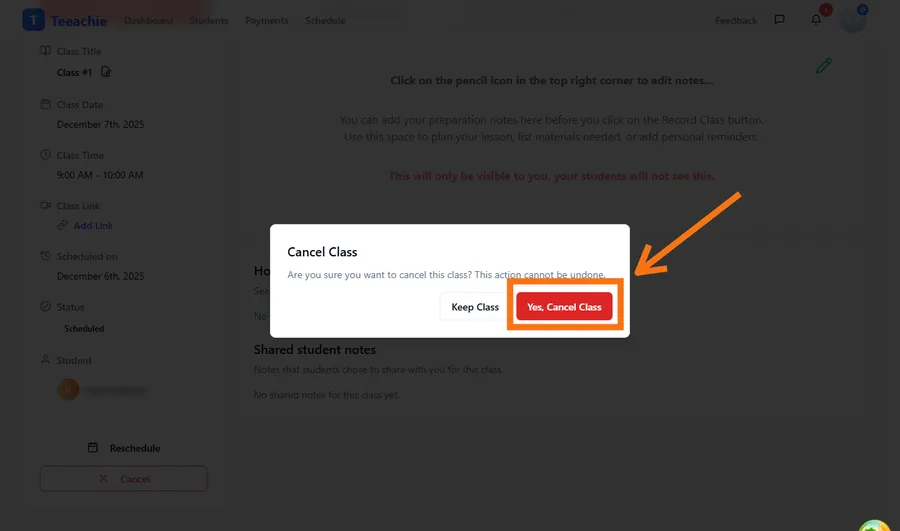
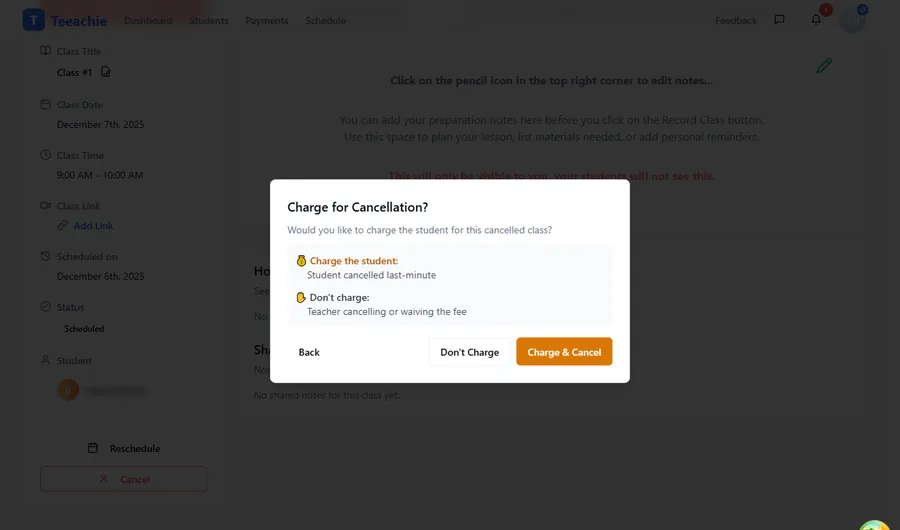
Cancel with or without charging
When cancelling, you have two options:
Don’t charge (default)
- No credits deducted
- Use when: You initiated the cancellation, schedule conflicts, emergencies
Charge the student
- Credits/session deducted as if the class happened
- Use when: Student no-showed, late cancellation by student
Note: The charging option helps you handle late cancellations fairly. It’s up to you whether to charge based on your cancellation policy.
Cancelled class status
Cancelled classes:
- Are marked with a “Cancelled” status
- No longer appear as upcoming classes
- Don’t count toward completed classes
- May still appear in history views with a “Cancelled” label
Handling late cancellations
When a student cancels at the last minute or doesn’t show up:
- Cancel the class following the steps above
- When asked to confirm, click Yes, Cancel Class
- Select Charge the student option
- Click Charge & Cancel to deduct credits
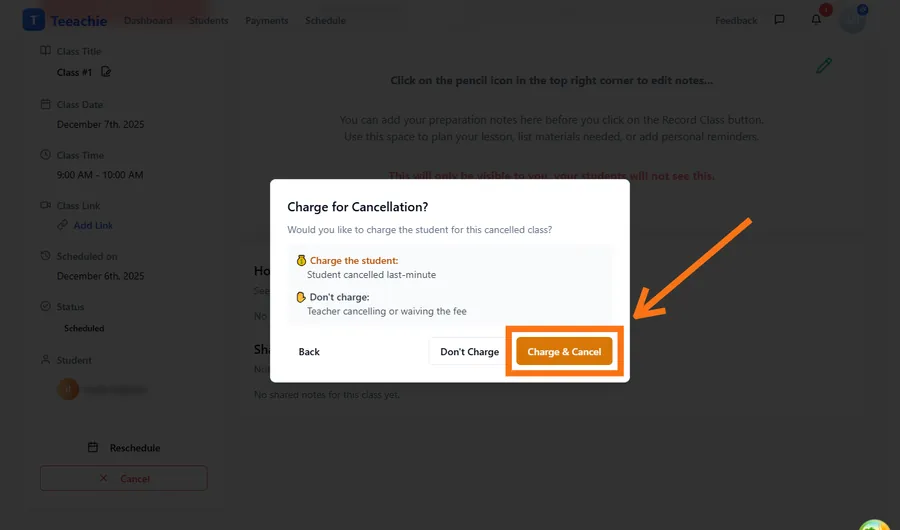
This deducts credits or marks a session as used, depending on their payment arrangement.
Setting cancellation expectations
To avoid disputes:
- Communicate your cancellation policy upfront
- Include it in your welcome message to new students
- Be consistent in applying the policy
Example policy:
“Cancellations with less than 24 hours notice will be charged as a completed class.”
What your student sees
When you reschedule
- They see the new time on their dashboard and calendar
- They may see an in-app notification (bell icon) about the change
When you cancel
- They see the class removed from their upcoming schedule
- They may see an in-app notification about the cancellation
- If charged, their credit balance updates
Rescheduling group classes
For group classes, the process is similar but affects all students in the group:
- Open the group class from the calendar
- Click Reschedule to move the entire session
- All enrolled students are notified
Note: You cannot reschedule group classes for individual students – it’s all or nothing.
Best practices
Give notice when possible
Try to reschedule or cancel at least 24 hours in advance. This gives students time to adjust their plans.
Communicate directly
In addition to the automatic notification, consider sending a message explaining the change – especially for cancellations.
Document the reason
Add a note when cancelling so you remember why. This helps with tracking and discussing with students if needed.
Be fair but firm
Apply your cancellation policy consistently. Students respect clear, fair rules.
Troubleshooting
Can’t find the cancel button
- Make sure the class hasn’t already been completed
- Check that you’re viewing the class details (click on it)
- Verify you’re looking at the right class
Student wasn’t notified
- Notifications are in-app (bell icon) – ask them to check it
- Have them refresh their dashboard
- Follow up with a message if they missed the notification
Need to undo a cancellation
Cancelled classes cannot be “uncancelled.” Instead:
- Schedule a new class at the desired time
- Note that it replaces the cancelled one
What’s next?
- Record a class – Finish classes properly
- Record payments – Manage student balances
Need help?
Having issues with rescheduling or cancelling? Contact support and we’ll help.