Record attendance and track sessions for a group
Learn how to mark attendance for group classes and how sessions are tracked for each student's enrollment.
Record attendance and track sessions for a group
After teaching a group class, marking attendance ensures each student’s sessions are tracked correctly. This guide explains the attendance workflow.
Why attendance matters
For group classes, attendance tracking:
- Deducts sessions only for students who attended
- Preserves sessions for students who were absent
- Creates accurate records of who participated
- Supports fair billing – absent students don’t lose sessions
Mark attendance when completing a class
- Click on the group class in your calendar (after the class time has passed)
- Click Record Class
- The attendance dialog appears
- Check the box for each student who attended
- Leave unchecked for absent students
- Click to confirm
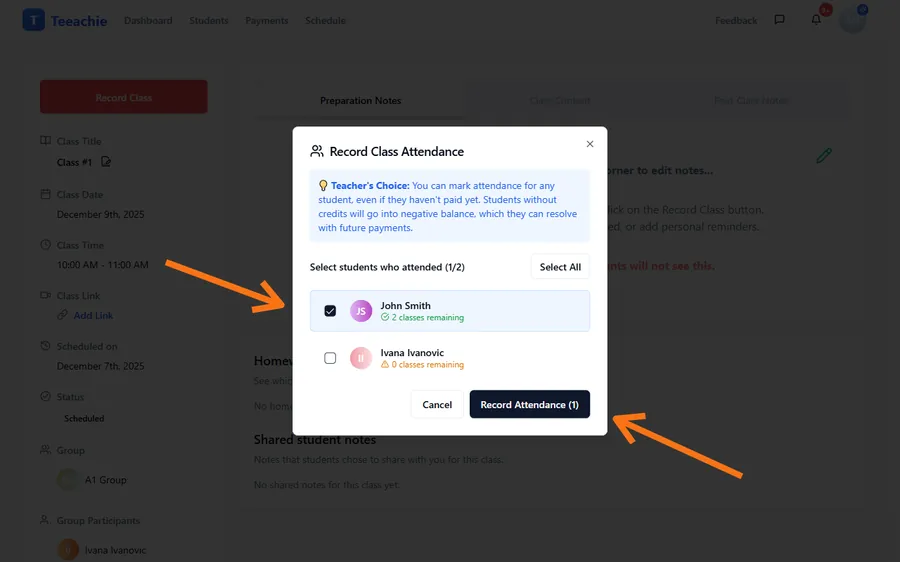
What happens when you mark attendance
For attended students
- One session is deducted from their enrollment
- The class appears in their attendance history
- Their “sessions remaining” decreases by 1
For absent students
- No session deducted
- They keep their full session balance
- The class appears as a past session on their dashboard
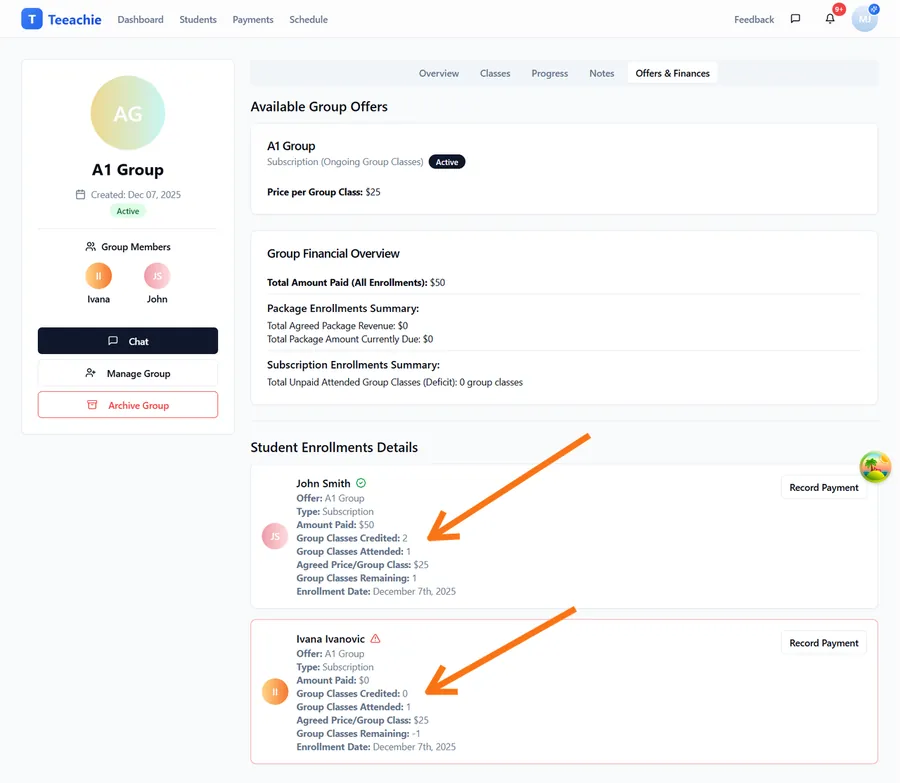
Tracking attendance
Attendance data is stored and affects each student’s enrollment:
- Sessions attended increases for students marked present
- Sessions remaining and payment status update accordingly
- This feeds into the Member Payment section on the group profile
Note: There isn’t currently a dedicated per-class attendance list UI to browse after recording. Attendance surfaces indirectly through enrollment metrics (sessions attended/remaining).
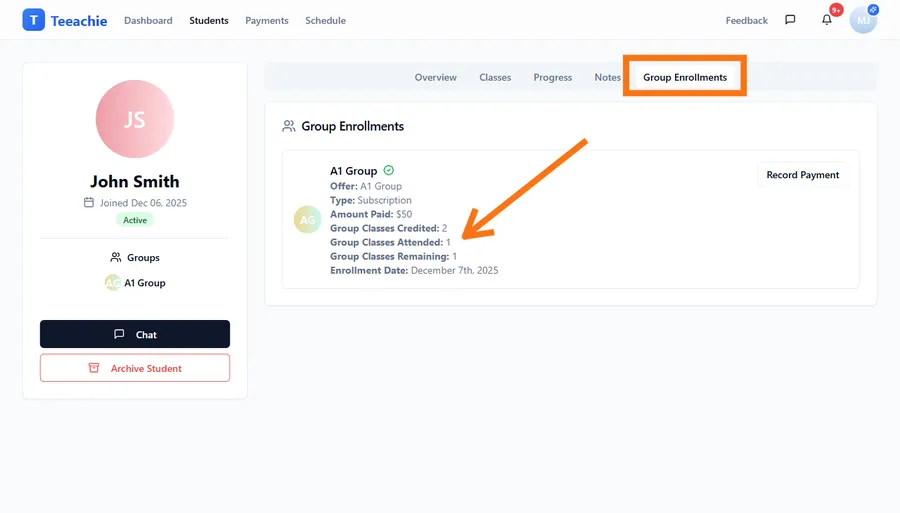
After recording attendance
Once a class is recorded, the Record Class button disappears. If you need to correct attendance:
- The dialog supports editing when opened, but there’s no separate “Edit Attendance” button after recording
- For significant corrections, contact support for assistance
Session tracking for enrollments
Each student’s enrollment tracks:
- Total sessions – What they paid for (packages)
- Sessions attended – Classes they’ve been marked present
- Sessions remaining – What’s left
Package enrollments
Sessions remaining = Total sessions - Sessions attendedSubscription enrollments
- Sessions credited vs attended are tracked (no fixed total)
- The system tracks whether students are ahead or behind on payments
- If attendance outpaces payments, the enrollment may show overdue status
Handling special cases
Student joins mid-course
When a student enrolls after the group has started:
- They’re only expected to attend future classes
- Past classes don’t affect their session count
Student misses multiple classes
Absent students keep their sessions. You might:
- Offer makeup sessions
- Let them attend future classes
- Discuss their commitment
Late arrivals
Mark students who arrived late as “attended” – partial attendance still counts as a session.
Make-up classes
If you offer a make-up session, schedule it as a regular class and mark attendance normally.
Best practices
Mark attendance promptly
Complete classes and mark attendance soon after teaching. This keeps records accurate.
Double-check before confirming
Review the attendance list carefully before clicking Complete.
Communicate with absent students
Reach out to students who miss classes frequently.
Keep records for disputes
Attendance history helps if there are questions about session usage.
Attendance and the Class Management Hub
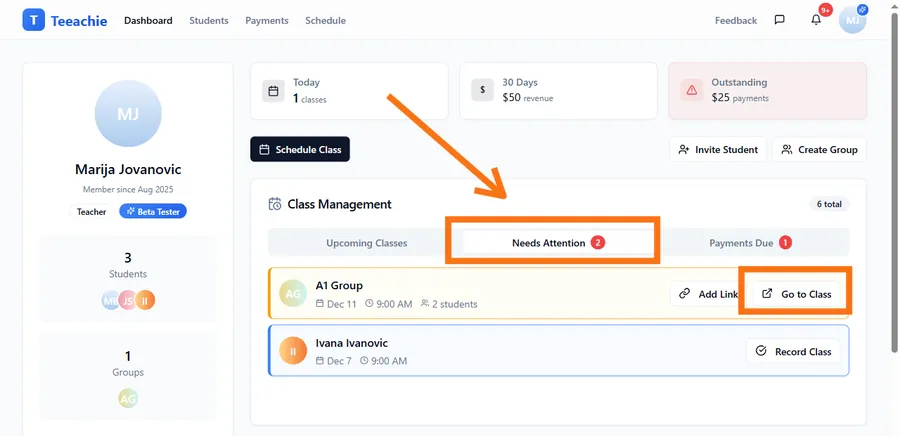
The Needs Attention section in your Class Management Hub shows group classes pending completion:
- Go to Dashboard
- Find Class Management Hub
- Click Needs Attention
- See group classes needing attendance marking
- Click Go to Class to open the class page, then click Record Class to mark attendance
What’s next?
- Record group payments – Process enrollment payments
- View enrollment details – Check session balances
- Schedule more classes – Keep the group going
Need help?
Questions about attendance tracking? Contact support and we’ll help.