Class pages overview for teachers
Understand how class pages work and how to use them for organizing materials, meeting links, and class notes.
Class pages overview for teachers
Any scheduled class can have its own class page. When you first open a class that doesn’t have one yet, Teeachie creates it for you. This guide explains what class pages are and how to use them effectively.
What is a class page?
A class page is a central location for everything related to a specific class:
- Meeting link – Where to join the video call
- Materials – Files and resources for the lesson
- Notes – Your preparation notes and post-class summaries
- Homework – Student submissions (for teachers to view)
Think of it as a “home” for each class session.
Access a class page
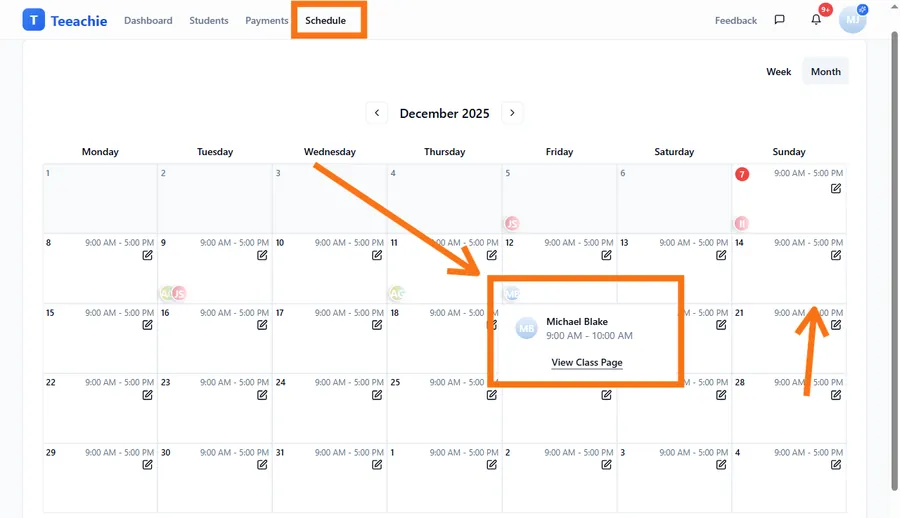
From the calendar
- Click on any class in your calendar
- In the menu, click Go to Class (or Go to Group Class)
- The class page opens in a new view
From a student profile
- Open the student’s profile
- Go to the Classes tab
- Click on a specific class
- The class page opens
From the Class Management Hub
- Go to your Dashboard
- Find the Class Management Hub
- Click on any class in the list
- View or access its class page
Class page sections
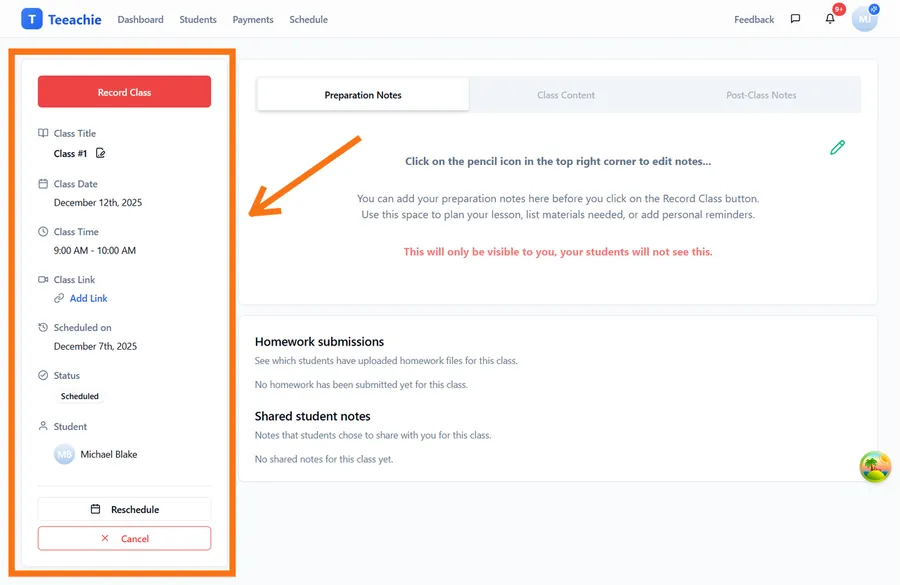
Header information
At the top of every class page:
- Date and time of the class
- Student name (or group name)
- Class status (Scheduled, Completed, Cancelled)
Meeting link
The meeting link section displays:
- Your video call URL (Zoom, Google Meet, etc.)
- A clickable link to join the call
Materials
Upload and organize:
- Lesson slides and presentations
- Worksheets and exercises
- Reference documents
- Audio or video files
Notes
Two types of notes available:
- Preparation notes – What you plan to cover
- Post-class notes – Summary of what happened
Homework section
For teachers, this shows:
- Student-submitted homework files
- Submission timestamps
- Download options
Class page states
Before the class
- Meeting link can be added
- Materials can be uploaded
- Prep notes can be written
- Homework section is empty
During the class
- Same as before
- Quick access to meeting link
After the class
- Can add post-class notes
- Use Record Class button to mark the class as completed
- View any homework submissions
- All content remains accessible
Individual vs group class pages
Individual classes
- One student associated
- Homework from that student
- Notes specific to them
Group classes
- Group name displayed
- All members can view materials
- Attendance tracking integrated
- Homework from multiple students
Best practices
Prepare in advance
Add meeting links and materials before the class so students can access them.
Use notes effectively
- Prep notes: Bullet points of topics to cover
- Post-class notes: What was learned, areas to review
Organize materials logically
Name files clearly so students can easily find what they need.
Review after class
Check homework submissions and add post-class notes while the lesson is fresh.
What’s next?
- Add meeting links and materials – Upload content to class pages
- View homework submissions – See what students submit
- Complete a class – Finalize the session
Need help?
Questions about class pages? Contact support and we’ll help.